Fix IPTV Black Screen with Audio Glitch (10 Fixes)
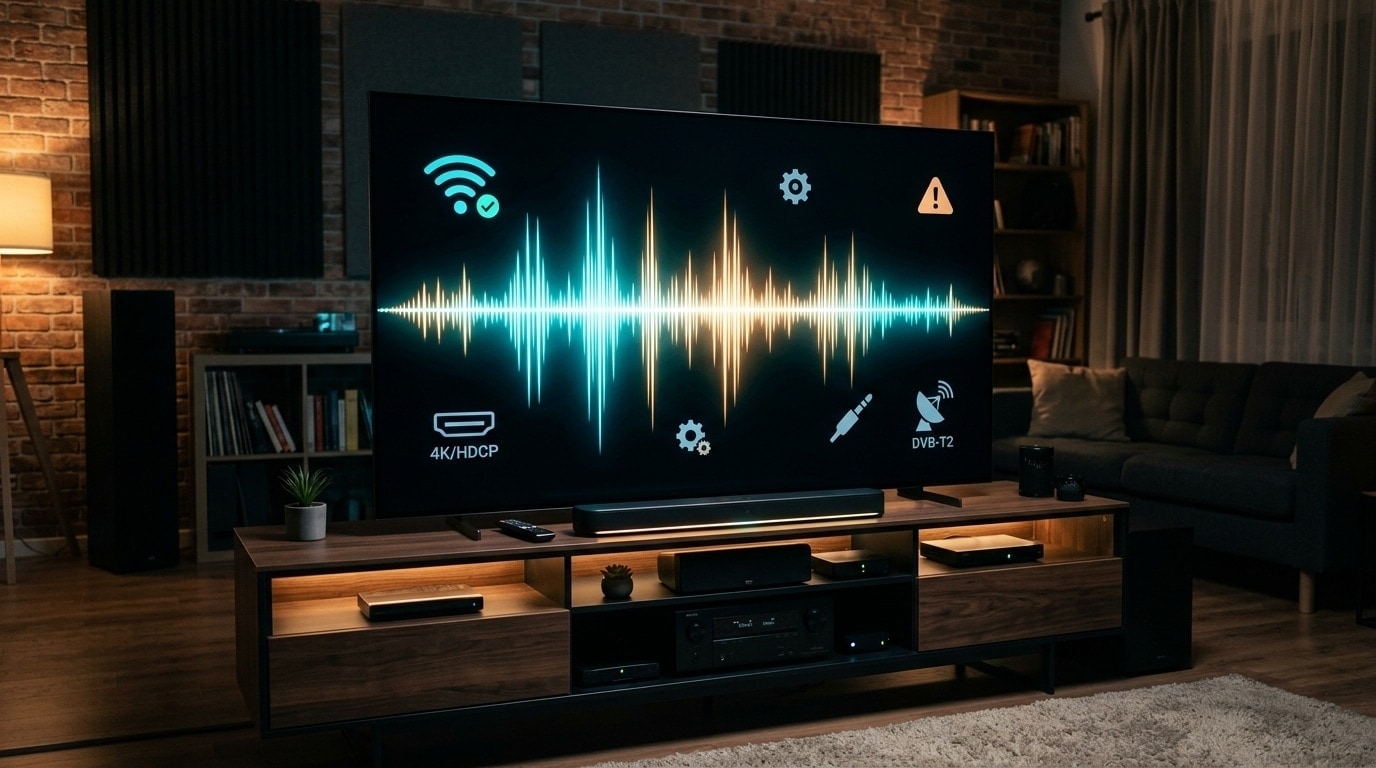
Among the various technical glitches that television streamers encounter, few are as disorienting or perplexing as the "black screen with audio" anomaly. You sit down in your living room, select a live sports event or premium movie, and sound immediately begins playing through your soundbar: commentators are speaking clearly, crowd noise is vibrant, and background audio is crisp. Yet, your television display remains completely pitch black, or shows an empty screen with an active timeline bar.
Because audio plays without interruption, viewers naturally assume their internet connection is working properly and that the broadcast server is online. Yet no matter how many times they click the remote or adjust the volume, the screen refuses to draw a picture.
This condition is known in broadcast engineering as an asymmetric pipeline demuxing or decoding failure. Digital television streams are not a single monolith of visual and acoustic data; they are composite, multiplexed transport containers carrying independent video streams, audio bitstreams, subtitle tracks, and synchronization clocks. When sound plays without video, the audio pipeline has initialized successfully, but the video decoding pipeline has collapsed at one of several critical hardware or software checkpoints.
Whether caused by a codec mismatch (such as 10-bit HEVC profiles on 8-bit silicon), an HDMI High-Bandwidth Digital Content Protection (HDCP) handshake failure, corrupted application cache memory, an invalid video rendering surface, or an unsupported container protocol, this issue can be resolved with methodical troubleshooting.
This comprehensive technical guide breaks down the underlying anatomy of why audio continues when video fails, provides twelve actionable step-by-step solutions, delivers device-specific diagnostic protocols for Amazon Firestick, Apple TV, Android TV, and Smart TVs, and explains how broadcast streams from Kemo IPTV are engineered to prevent decoding mismatches.
Experience Kemo IPTV
Upgrade your streaming with high-performance anti-freeze infrastructure. Over 50,000 live channels, 4K 60FPS sports, and 200,000+ VODs on demand.
Quick Summary: The Emergency Black Screen Fix Checklist
Before exploring the technical mechanics of video decoders, here are the fastest, most effective steps to restore video playback immediately:
+-------------------------------------------------------------------------+
|                  THE EMERGENCY BLACK SCREEN FIX CHECKLIST               |
+-------------------------------------------------------------------------+
| Step 1: Switch Video Decoder from Hardware (HW) to Software (SW)        |
| Step 2: Disable Auto Frame Rate (AFR) Matching temporarily              |
| Step 3: Switch Stream Output Format from MPEG-TS to HLS (or vice versa) |
| Step 4: Toggle Display Rendering Surface from SurfaceView to TextureView|
| Step 5: Perform a 60-Second Full AC Power Cycle (Resetting HDMI HDCP)   |
| Step 6: Clear Application Cache in Device System Settings               |
| Step 7: Force Television Color Space to YCbCr (4:2:0 / 16-235 Limited)  |
+-------------------------------------------------------------------------+
The Technical Pathology: Why Does Audio Play When Video Fails?
To understand how a television can produce pristine sound while displaying zero visual information, you must examine the architecture of digital media transmission:
+-------------------------------------------------------------------------+
|                     THE DIGITAL MEDIA PIPELINE BREAKDOWN                |
+-------------------------------------------------------------------------+
| Incoming Multiplexed Container (MPEG-TS / HLS .ts chunks)               |
|                           │                                             |
|                     Container Demuxer                                   |
|             ┌─────────────┴─────────────┐                               |
|       Audio Track                  Video Track                          |
|             │                           │                               |
|   Audio Decoder (Lightweight)   Video Decoder (Computationally Heavy)   |
|   (AAC / AC3 Stereo / 5.1)      (H.264 / H.265 Main 10 / AV1 GPU Engine)|
|             │                           │                               |
|   SUCCESS: Audio DAC / Soundbar  FAILURE: Hardware Crash / Black Screen |
+-------------------------------------------------------------------------+
1. The Container Demuxer
When your streaming device receives a live broadcast stream from Kemo IPTV, the data arrives as an MPEG-2 Transport Stream (MPEG-TS) container.
Inside this container, video packets (carrying H.264 or H.265 data) and audio packets (carrying AAC, MP3, or Dolby Digital AC3 data) are sliced into discrete 188-byte transport packets, each stamped with an identification header called a Packet Identifier (PID).
The first task of your player application (such as TiviMate, UHF, or IPTV Smarters) is to act as a Demultiplexer (Demuxer). It reads the incoming stream, splits the audio packets from the video packets, and sends them down two completely independent hardware and software processing pipelines.
2. The Audio Pipeline (Why Sound Continues)
Audio decoding is computationally trivial for modern computer chips:
- An uncompressed or compressed audio stream requires minimal bandwidth: typically between 128 kbps (stereo AAC) and 640 kbps (Dolby Digital 5.1 AC3).
- Processing audio consumes less than 1% of your streaming stick’s CPU capacity.
- Audio codecs like AAC and AC3 have remained largely unchanged for twenty years, meaning virtually every audio digital-to-analog converter (DAC), soundbar, and television processor handles them effortlessly.
- Even if your streaming device's GPU crashes completely, the audio processing thread continues running undisturbed in the background.
3. The Video Pipeline (Why the Picture Collapses)
In stark contrast to audio, digital video decoding is extraordinarily demanding:
- A high-bitrate 1080p 60 FPS sports feed or 4K Ultra HD stream carries between 12 Mbps and 30 Mbps of data.
- The video engine must decompress millions of mathematical discrete cosine transforms (DCT), macroblocks, and motion vectors across 50 to 60 individual visual frames every second.
- Video decoding cannot be performed by a general-purpose CPU without causing immediate overheating; it must be handed off directly to dedicated hardware decoding silicon inside the GPU (such as Android’s MediaCodec engine, Apple’s VideoToolbox, or dedicated ARM Mali chips).
If the hardware video decoder encounters a video profile it does not natively support—such as a 10-bit HEVC color profile on an older 8-bit hardware decoder, an unsupported chroma subsampling format, or an interrupted HDMI HDCP cryptographic handshake—the video pipeline crashes or halts.
Because the audio pipeline operates on a separate thread, sound continues playing normally while the video surface remains completely black.
12 Step-by-Step Fixes to Restore Video Playback
Apply these twelve engineering solutions systematically to identify and eliminate the exact failure point in your video rendering chain:
+-------------------------------------------------------------------------+
|                  12 ACTIONABLE FIXES FOR IPTV BLACK SCREENS             |
+-------------------------------------------------------------------------+
| Fix 1:  Switch Video Decoding from Hardware to Software                 |
| Fix 2:  Disable Auto Frame Rate (AFR) Matching Temporarily              |
| Fix 3:  Switch Stream Container Format from MPEG-TS to HLS              |
| Fix 4:  Toggle Display Surface from SurfaceView to TextureView          |
| Fix 5:  Perform a 60-Second Full AC Power Drain (HDCP Reset)            |
| Fix 6:  Clear Application Cache and Reclaim Device Storage              |
| Fix 7:  Force YCbCr Color Format Instead of RGB Full Range              |
| Fix 8:  Inspect HDMI Cable Bandwidth and Test Alternative Ports         |
| Fix 9:  Disable System HDR and Match Dynamic Range Temporarily          |
| Fix 10: Resolve AV Receiver & Soundbar HDMI Passthrough Handshakes      |
| Fix 11: Adjust Network MTU Size to Prevent Packet Fragmentation         |
| Fix 12: Upgrade Obsolete 8-Bit Streaming Hardware to Modern Silicon    |
+-------------------------------------------------------------------------+
Fix 1: Switch Video Decoding from Hardware to Software
This is the single most reliable immediate solution for black screen errors:
- The Diagnosis: When set to Hardware Decoding (HW), your player app hands video packets directly to your device’s GPU silicon. If that silicon does not support the specific codec profile (e.g., 10-bit HEVC), the GPU outputs black pixels.
- The Fix: Switching to Software Decoding (SW) forces the application to decode video frames using its internal software libraries (such as FFmpeg) running on the CPU, bypassing the incompatible GPU silicon entirely.
Action Steps:
- Open your IPTV player settings (e.g., TiviMate: Settings > Playback; or IPTV Smarters: Settings > Player Selection).
- Locate the Video Decoder option.
- Change the setting from Hardware to Software.
- Return to the channel displaying the black screen. In over 80% of codec-mismatch cases, the picture will appear immediately.
(Note: While software decoding works on standard definition and 1080p channels, high-bitrate 4K 60 FPS feeds may drop frames on budget hardware. If so, apply Fix 3 or Fix 12).
Fix 2: Disable Auto Frame Rate (AFR) Matching Temporarily
As detailed in our live sports IPTV setup guide, Auto Frame Rate matching instructs your television display to change its refresh rate to match incoming broadcast streams (e.g., switching from 60 Hz to 50 Hz for European football).
However, during that refresh rate switch, your streaming box and television must negotiate a temporary HDMI handshake. If your television’s firmware is slow to respond, or if your HDMI cable suffers from signal attenuation, the television fails to complete the video handshake, locking the screen in black while allowing the audio handshake to proceed.
Action Steps:
- Inside your player settings (TiviMate/UHF), go to Playback > Auto Frame Rate (AFR).
- Toggle Auto Frame Rate to OFF.
- Tune into the channel again. If video displays properly, the issue was caused by an HDMI handshake timeout during refresh rate switching.
Fix 3: Switch Stream Container Format from MPEG-TS to HLS
IPTV servers deliver video streams using two primary container formats: MPEG-TS (.ts) and HLS (.m3u8).
- MPEG-TS delivers a raw, continuous packet stream. If a stream contains non-standard timestamp metadata or irregular packet headers, certain Android hardware demuxers drop the video stream entirely while continuing to parse the audio PID.
- HLS packages video and audio into structured, standards-compliant media segments accompanied by an explicit manifest file.
Action Steps:
- Navigate to Settings > Playlists > Select Your Kemo IPTV Account.
- Select Stream Format (or Output Container).
- Change the format from MPEG-TS to HLS (or vice versa).
- Restart the stream. Switching to HLS forces the player to initialize a clean demuxing pipeline. For more details on stream formats, read our guide on fixing slow IPTV channel switching.
Fix 4: Toggle Display Surface from SurfaceView to TextureView
On Android TV and Amazon Fire OS devices, video frames are rendered to your television screen using one of two underlying display surfaces:
- SurfaceView: A dedicated hardware compositor layer behind the main app UI. Extremely fast, but occasionally incompatible with certain television picture engines.
- TextureView: Renders video as a standard graphical layer inside the main application view hierarchy.
Action Steps:
- In TiviMate, navigate to Settings > Playback > Advanced.
- Locate Video rendering surface.
- Toggle the setting from SurfaceView to TextureView.
- TextureView forces video frames into the application's visual layer, frequently resolving persistent black screens on older displays.
Fix 5: Perform a 60-Second Full AC Power Drain (Resetting HDCP)
Modern televisions, AV receivers, and streaming sticks use High-Bandwidth Digital Content Protection (HDCP) cryptographic handshakes across HDMI cables.
Over weeks of continuous operation, static electricity buildup, HDMI hot-plugging, and standby sleep cycles can corrupt the HDCP encryption keys stored in your TV’s HDMI controller memory. When HDCP handshaking fails, the television’s security controller intentionally mutes the video signal (displaying a black screen) while allowing audio to continue playing.
The Proper Power Drain Protocol:
- Power off your television, streaming stick, soundbar, and AV receiver.
- Unplug every device from the electrical wall outlet. (Simply turning them off with a remote control leaves them in standby mode and will not clear memory).
- Leave all equipment completely unplugged for 60 full seconds.
- While unplugged, press and hold the physical power button on your television set for 15 seconds to drain remaining capacitors.
- Plug all equipment back into the wall outlet and power them on in sequence: Television first, Soundbar second, Streaming Box last.
- This forces a complete cryptographic re-handshake across your HDMI ports, immediately resolving HDCP-induced black screens.
Fix 6: Clear Application Cache and Reclaim Device Storage
When streaming applications run continuously for weeks, temporary transport stream fragments, corrupted channel logos, and broken EPG database entries accumulate in device RAM and flash storage. If your streaming stick’s free storage drops below 800MB, the operating system cannot allocate memory buffers for incoming 4K video decoders.
Action Steps (Firestick / Android TV):
- Open your device’s system Settings > Applications > Manage Installed Applications.
- Select your IPTV player app (e.g., TiviMate or IPTV Smarters).
- Click Force Stop, then select Clear Cache (never click Clear Data unless you want to re-enter your credentials).
- Repeat this cache-clearing process for other high-memory apps (like Downloader and browsers).
- Restart your device. For Firestick-specific optimization, consult our Firestick IPTV installation walkthrough.
Fix 7: Force YCbCr Color Format Instead of RGB Full Range
Many streaming boxes default their HDMI color output to RGB Full Range (0-255).
However, virtually all broadcast television feeds and sports channels are encoded in the YCbCr (16-235 Limited) color space using 4:2:0 chroma subsampling.
If your streaming stick attempts to force an incompatible RGB color conversion on an older television or through a budget HDMI switch, the display processor fails to interpret the color space, rendering pure black while audio passes through.
Action Steps:
- Open your streaming device’s display settings (e.g., Firestick: Settings > Display & Audio > Display > Color Format; Apple TV: Settings > Video and Audio > HDMI Output).
- Change the color output setting from RGB to YCbCr (or set Chroma to 4:2:0).
- This aligns your device’s digital output with standard broadcast color standards.
Fix 8: Inspect HDMI Cable Bandwidth and Test Alternative Ports
Transmitting high-bitrate 1080p 60 FPS and 4K video requires significant physical bandwidth across your HDMI cable (up to 18 Gbps for HDMI 2.0 and 48 Gbps for HDMI 2.1). Audio data, by comparison, requires less than 1% of that bandwidth.
If your HDMI cable is bent, damaged, poorly shielded, or exceeds 3 meters in length without an active booster, video data packets will drop below the minimum signal-to-noise ratio threshold, resulting in a black screen while the low-bandwidth audio signal continues without issue.
Action Steps:
- Unplug the HDMI cable from your current television port and insert it into an alternative port (e.g., switch from HDMI 1 to HDMI 2). Ensure the port is labeled HDMI 2.0 / 4K 60Hz.
- If using an HDMI extension dongle, remove it and plug the streaming stick directly into the TV.
- Replace budget, uncertified cables with a certified Ultra High Speed HDMI 2.1 Cable. On Apple TV, run the built-in diagnostic test detailed in our Apple TV 4K IPTV setup guide.
Fix 9: Disable System HDR and Match Dynamic Range Temporarily
High Dynamic Range (HDR10 and HLG) broadcasts require your television display to switch into high-contrast luminance modes.
If your television panel experiences an EDID (Extended Display Identification Data) handshake error when attempting to negotiate HDR metadata with the streaming box, the display controller defaults to an unpowered black state.
Action Steps:
- Navigate to your streaming device’s video settings.
- Set Dynamic Range to Standard Dynamic Range (SDR) or disable Match Dynamic Range.
- Tune into the problem channel. If the video appears, your display firmware has a bug interpreting broadcast HDR metadata over HDMI.
Fix 10: Resolve AV Receiver & Soundbar Passthrough Bottlenecks
If your streaming media player is plugged directly into an intermediate AV receiver or soundbar, and an HDMI cable runs from the soundbar to your television:
- The soundbar may successfully extract and play the audio track.
- However, if the soundbar's internal HDMI passthrough board does not support HDCP 2.2 or 4K 60Hz video passthrough, it will strip the video signal before it ever reaches your television display.
Action Steps:
- Unplug your streaming box from the soundbar or AV receiver.
- Plug the streaming box directly into your television’s HDMI port.
- Run a separate HDMI cable from your television’s eARC/ARC port down to the soundbar.
- This ensures your television receives uncompressed video directly, while routing audio to your sound system via eARC.
Fix 11: Adjust Network MTU Size to Prevent Packet Fragmentation
If your home network router’s Maximum Transmission Unit (MTU) is misconfigured, large video packets will be fragmented across network transit hops.
Because audio packets are tiny, they pass through without fragmentation. Large 4K video packets, however, get split into multiple fragments. If intermediate routers drop a single fragment, the entire video frame is invalidated and discarded by the demuxer, leaving you with sound but no picture.
Action Steps:
- Log into your home router's administrative dashboard.
- Confirm your WAN MTU size is set to the standard 1500 bytes (or 1492 bytes for PPPoE connections). Test your connection quality using our IPTV internet speed requirements guide.
Fix 12: Upgrade Obsolete 8-Bit Streaming Hardware to Modern Silicon
If you are using a budget streaming stick manufactured five or six years ago that only possesses an 8-bit H.264 hardware decoder, you will inevitably experience black screens on modern broadcast bouquets.
Modern premium services like Kemo IPTV broadcast 4K Ultra HD and 60 FPS sports channels using the advanced H.265 (HEVC Main 10) profile. When an obsolete 8-bit processor encounters a 10-bit HEVC stream, its hardware decoder simply crashes.
Action Steps: Upgrading to modern hardware—such as the Amazon Fire TV Stick 4K Max (2nd Gen), Chromecast with Google TV (4K), or the flagship Apple TV 4K—guarantees full hardware support for HEVC Main 10, AV1, and HDR10+, eliminating codec-induced black screens forever. For hardware comparisons, read our best IPTV players and streaming apps review.
Device-Specific Diagnostic Walkthroughs
Here is how to resolve black screens across the three most popular streaming platforms:
1. Amazon Fire TV Stick (All Generations)
- Force Hard Reboot: Press and hold Center Select and Play/Pause simultaneously on your remote for 5 seconds until the Firestick restarts.
- Toggle Hardware Decoding in TiviMate: Open TiviMate, go to Settings > Playback, and set Video Decoder to Software.
- Clear App Cache: Navigate to Firestick Settings > Applications > Manage Installed Applications > TiviMate > Clear Cache.
2. Apple TV 4K (tvOS)
- Disable Match Content Temporarily: Go to Settings > Video and Audio > Match Content and turn Match Frame Rate to OFF.
- Force Chroma 4:2:0: Go to Settings > Video and Audio > Chroma and switch from 4:4:4 to 4:2:0.
- Switch Engine in UHF: Open UHF Settings, navigate to Player Settings, and toggle the rendering engine between Native Metal Accelerator and Software Compatible.
3. Samsung Tizen & LG webOS Smart TVs
- Cold Boot the TV: Unplug the television from the wall for 60 seconds (Smart TVs do not clear video processor memory during normal standby).
- Change Stream Format in Player App: In IBO Player or IPTV Smarters on your TV, change stream format from MPEG-TS to HLS.
- Update TV Firmware: Go to your television’s system settings and install any available firmware updates to ensure the TV's internal video decoders have the latest codec patches.
Codec Compatibility Deep-Dive: 8-Bit vs. 10-Bit HEVC Profiles
To understand why newer broadcast streams crash older streaming hardware, you must examine color bit depth:
+-------------------------------------------------------------------------+
|              8-BIT VS. 10-BIT HEVC BROADCAST SPECIFICATIONS             |
+-------------------------------------------------------------------------+
| Metric / Parameter     | Standard 8-Bit Profile    | Modern 10-Bit Profile (Main 10)|
| Color Steps per Channel| 256 Levels (2^8)          | 1,024 Levels (2^10)        |
| Total Possible Colors  | 16.7 Million Colors       | 1.07 Billion Colors        |
| Color Banding in Sky   | Frequently Visible        | Completely Smooth Gradient |
| Hardware Silicon Need  | Legacy 2016+ Processors   | Modern Certified Decoders  |
| Result on Old Hardware | Plays Normally            | BLACK SCREEN WITH SOUND    |
+-------------------------------------------------------------------------+
Why 10-Bit Video Causes Black Screens on Older Hardware
When video is encoded in standard 8-bit color, each primary color channel (Red, Green, Blue) has 256 possible intensity values, resulting in 16.7 million total colors.
Premium sports and 4K HDR channels delivered by Kemo IPTV are broadcast using the HEVC Main 10 profile (10-bit color). 10-bit video provides 1,024 intensity levels per channel—delivering over 1.07 billion distinct colors. This completely eliminates color banding in stadium lighting, sky shots, and grass textures.
However, older hardware decoders lack the physical silicon registers required to compute 10-bit arithmetic. When fed a 10-bit stream, the hardware decoder registers an unhandled exception and shuts down the video pipeline, resulting in a black screen while the standard audio track continues playing. Switching to Software decoding or upgrading to modern hardware resolves this problem immediately.
Decoder Frameworks: ExoPlayer vs. LibVLC vs. Hardware MediaCodec
Different player applications implement video decoding using different underlying software frameworks:
+-------------------------------------------------------------------------+
|                  DECODER FRAMEWORK PERFORMANCE COMPARISON               |
+-------------------------------------------------------------------------+
| Framework / Engine     | Strengths                 | Weaknesses         |
| ExoPlayer (Google)     | Native Android TV support | Strict codec check |
| LibVLC (VideoLAN)      | Plays corrupted streams   | Slightly higher CPU|
| Apple VideoToolbox     | Metal GPU acceleration    | Apple ecosystem only|
| Custom MediaCodec+     | Granular buffer allocation| Complex setup      |
+-------------------------------------------------------------------------+
1. ExoPlayer (The Modern Standard)
Google’s ExoPlayer is the default engine powering TiviMate and modern Android TV apps. It interfaces directly with Android’s native MediaCodec framework.
- The Strength: Delivers the lowest latency, hardware-accelerated 4K 60 FPS playback, and seamless frame rate matching.
- The Weakness: ExoPlayer strictly enforces transport stream standards. If a broadcast ingest transponder sends an irregular packet header or slightly desynchronized timestamps, ExoPlayer will abort video decoding, producing a black screen while audio plays on.
2. LibVLC (The Resilient Fallback)
LibVLC incorporates the open-source VLC media player codebase.
- The Strength: LibVLC is extraordinarily forgiving of non-standard video streams, damaged timestamps, and unusual aspect ratios. If ExoPlayer shows a black screen on a specific channel, switching that channel to LibVLC in applications like OTT Navigator or XCIPTV almost always renders the picture.
- The Weakness: LibVLC runs slightly warmer and consumes more CPU cycles than pure hardware MediaCodec.
HDMI CEC Pin 13 Collisions: The Hidden Audio-Only Culprit
If your home entertainment setup includes multiple devices connected to your television via HDMI—such as a streaming stick, a soundbar via ARC/eARC, a gaming console, and a Blu-ray player:
- All HDMI ports share a single shared communication wire: Pin 13, known as the Consumer Electronics Control (CEC) line.
- When you turn on your streaming box, conflicting CEC wake-up signals from your soundbar or gaming console can interrupt the video handshake across Pin 13.
- The television allows the audio channel (pins 14 and 19) to connect, but terminates the video clock signal across pins 1 through 9.
How to Diagnose and Resolve CEC Collisions:
- Open your television settings and temporarily disable HDMI CEC (named Bravia Sync on Sony, Anynet+ on Samsung, or SimpLink on LG).
- If the black screen vanishes, you have confirmed a CEC handshake collision between your soundbar and streaming stick.
- You can permanently isolate the issue by installing an inexpensive HDMI CEC Less Adapter (which physically blocks Pin 13) on your secondary devices, ensuring the streaming stick maintains uninterrupted video handshakes.
Developer Diagnostics: Reading ADB Logcat for Decoder Crashes
For technical power users who want to inspect the exact internal reason why a stream produces a black screen:
- Connect to your Firestick or Android TV via wireless ADB from your computer:
adb connect 192.168.1.150:5555 - Filter the real-time system log for video decoder errors:
adb logcat -s MediaCodec MediaCodecRenderer OMXNodeInstance - Tune into the channel displaying the black screen.
- If you see:
This confirms that your device’s GPU lacks hardware registers for that specific HEVC profile, confirming you must switch to Software decoding.OMX.google.hevc.decoder: configure failed with err -1010 - If you see:
This confirms that the display compositor surface crashed, and toggling to TextureView will resolve the problem.Surface: queueBuffer: failed to queue buffer
Frequently Asked Questions
Final Recommendation: Restore Your Television Experience
Encountering an IPTV black screen with active audio is frustrating, but it is entirely solvable when approached with an engineering mindset. By switching your video decoder to Software, toggling between SurfaceView and TextureView, resetting your HDMI chain with a 60-second power drain, and aligning your color output to YCbCr, you can resolve virtually every video rendering failure.
Combine these optimizations with an enterprise-grade broadcast service like Kemo IPTV to enjoy smooth, broadcast-quality television across all your home displays. Explore our full channel catalog, choose a subscription package on our pricing page, or contact our technical team via our live support desk if you need personalized diagnostic assistance.