How to Setup & Watch IPTV on Apple TV 4K (2026)
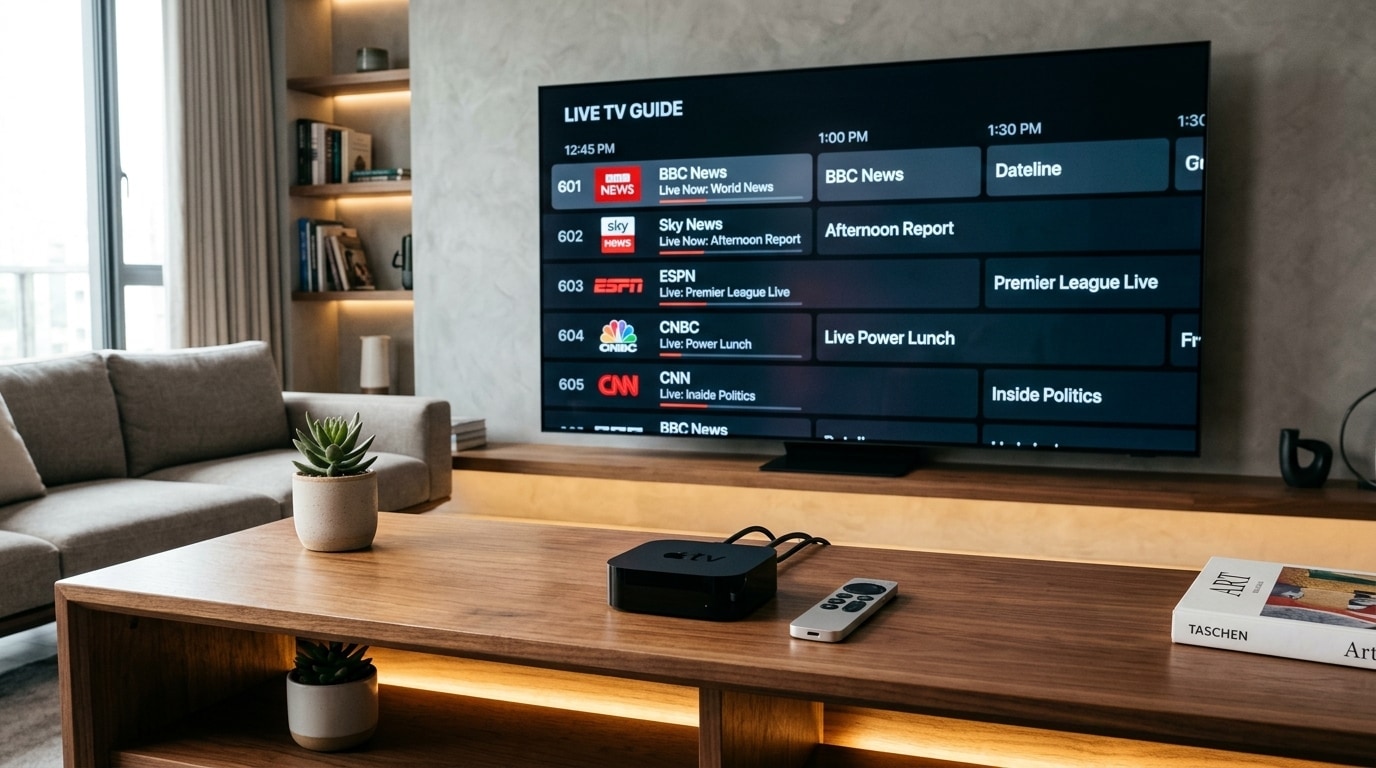
The Apple TV 4K is widely considered by home theater professionals and streaming power users to be the most capable consumer streaming hardware on the market. Powered by Apple’s high-performance A-series silicon (such as the A15 Bionic processor), featuring dedicated Gigabit Ethernet, support for Wi-Fi 6, and Apple’s proprietary Metal graphics engine, the Apple TV 4K possesses computational headroom that surpasses budget streaming sticks. When paired with an enterprise-grade IPTV subscription like Kemo IPTV, the Apple TV 4K delivers a fluid, broadcast-grade television experience characterized by instant channel zapping, smooth 60 FPS sports playback, and rich multi-channel Dolby audio.
However, because Apple maintains a curated, sandboxed operating system in tvOS, setting up IPTV on an Apple TV differs from the open sideloading workflows found on Android TV or Amazon Fire OS. You cannot simply install APK files from a web browser. Instead, viewers must leverage purpose-built, high-performance tvOS applications from the official App Store that support modern streaming protocols like Xtream Codes API and M3U8 transport streams.
This comprehensive guide provides everything required to transform your Apple TV 4K into an uncompromising home entertainment command center. We evaluate the leading tvOS IPTV player applications, walk through step-by-step configuration workflows, explain how to activate hardware frame rate matching to eliminate motion judder, configure audio passthrough for soundbars and AV receivers, and resolve common tvOS streaming bottlenecks.
Experience Kemo IPTV
Upgrade your streaming with high-performance anti-freeze infrastructure. Over 50,000 live channels, 4K 60FPS sports, and 200,000+ VODs on demand.
Quick Summary: The Apple TV 4K IPTV Setup Checklist
Before diving into detailed application configurations, keep this practical setup roadmap in mind:
+-------------------------------------------------------------------------+
|                  APPLE TV 4K IPTV CONFIGURATION ROADMAP                 |
+-------------------------------------------------------------------------+
| Top Recommended App:  UHF IPTV Player (App Store download)              |
| Alternative Apps:     IPTVX (VOD-focused) or Snappier IPTV (Fast zapping)|
| Login Protocol:       Xtream Codes API (Server URL, Username, Password) |
| System Video Match:   Match Dynamic Range = ON | Match Frame Rate = ON  |
| Audio Configuration:  Bitstream Passthrough to eARC / HomePods / AVR   |
| Network Route:        Gigabit Ethernet hardwired direct to home router  |
+-------------------------------------------------------------------------+
Why Apple TV 4K Delivers the Ultimate IPTV Experience
Before configuring your software, it is worth understanding the hardware architecture that makes the Apple TV 4K uniquely suited for high-bitrate live television:
+-------------------------------------------------------------------------+
|              APPLE TV 4K VS. BUDGET STREAMING STICKS (HARDWARE)         |
+-------------------------------------------------------------------------+
| Metric / Component      | Budget Streaming Stick   | Apple TV 4K (3rd Gen)      |
| Processing Chipset      | Quad-Core ARM Cortex-A53 | Apple A15 Bionic (6-Core)  |
| RAM Memory Capacity     | 1.0 GB – 1.5 GB          | 4.0 GB LPDDR4X             |
| UI Rendering Engine     | Basic OpenGL ES          | Apple Metal GPU Framework  |
| Network Connectivity    | 100 Mbps (or Wi-Fi only) | 1000 Mbps Gigabit Ethernet |
| Frame Rate Matching     | Inconsistent / Manual    | System-Wide Automated AFR  |
+-------------------------------------------------------------------------+
1. High-Performance Processing & Dedicated RAM
Most budget streaming sticks operate with 1.0 to 1.5 gigabytes of RAM and modest quad-core processors. When loading a massive IPTV playlist containing 50,000 live channels, extensive on-demand catalogs, and multiple days of XMLTV program guide data, these budget devices frequently experience memory exhaustion, resulting in frozen menus or sudden app crashes.
The Apple TV 4K features 4 gigabytes of high-speed RAM paired with the A15 Bionic chip. It parses extensive channel bouquets in seconds and stores guide metadata in memory without stutter.
2. Apple Metal Graphics Acceleration
Unlike Android-based sticks that rely on generic UI rendering engines, tvOS applications leverage Apple’s native Metal graphics API. This allows player applications like UHF to render full-resolution Electronic Program Guides with fluid 60 FPS animations, transparent liquid-glass overlays, and instantaneous scrolling through thousands of channel listings.
3. Native System-Level Content Matching
tvOS features robust, system-level video synchronization:
- Match Dynamic Range: Automatically switches your television between Standard Dynamic Range (SDR), HDR10, and Dolby Vision depending on the broadcast source, preventing oversaturated colors on regular television channels.
- Match Frame Rate: Automatically commands your television panel to match its refresh rate to the incoming broadcast (e.g., 50.00 Hz for European football or 59.94 Hz for North American sports), completely eliminating motion judder. Learn more about frame rate matching in our live sports IPTV setup guide.
The Top 4 IPTV Player Apps for Apple TV 4K (tvOS)
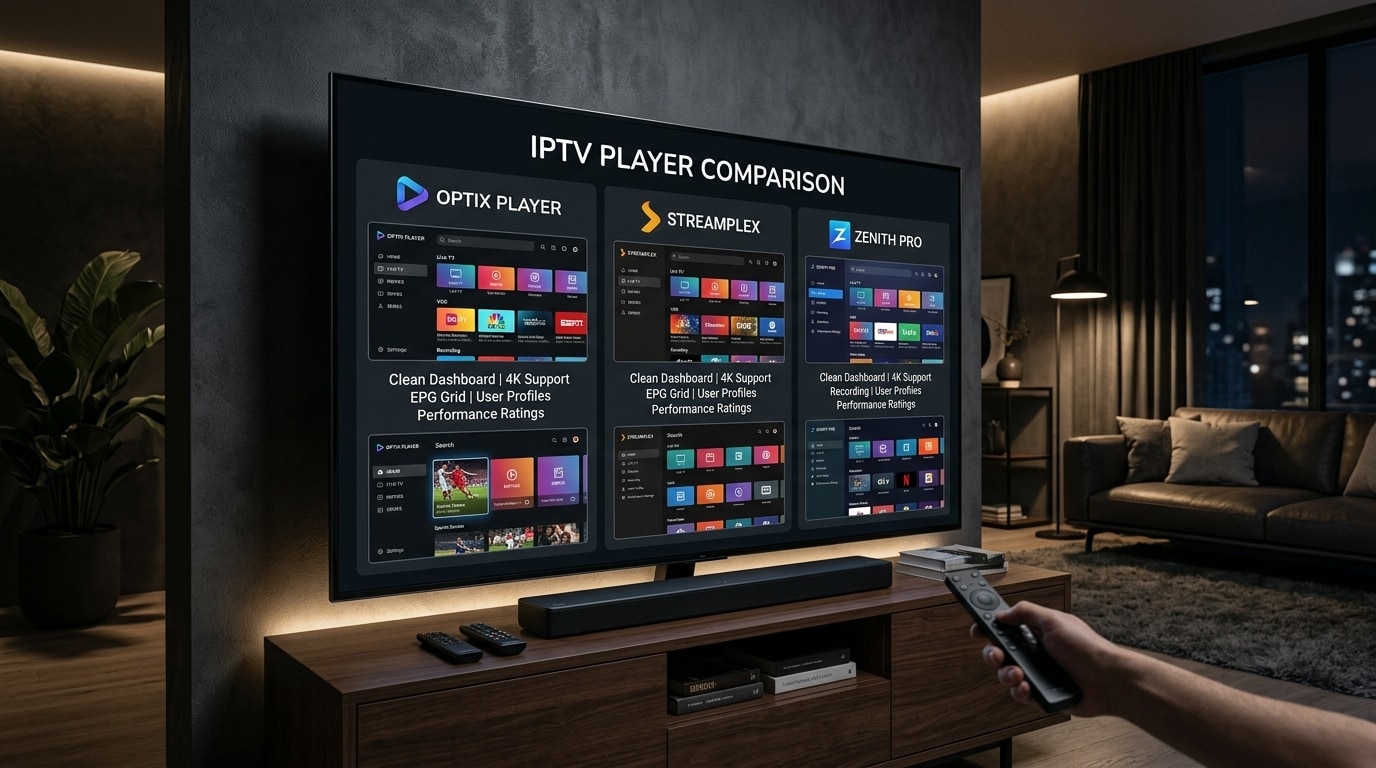
Because Android applications like TiviMate cannot be installed on tvOS, choosing the right native App Store player is essential. Here are the top four applications benchmarked for Apple TV:
+-------------------------------------------------------------------------+
|                       TOP 4 tvOS IPTV APPLICATIONS                      |
+-------------------------------------------------------------------------+
| 1. UHF IPTV Player       | The undisputed #1 overall player for tvOS    |
| 2. IPTVX                 | Best Netflix-style on-demand cinema UI       |
| 3. Snappier IPTV         | Lightweight, rapid zapping, clean interface  |
| 4. iPlayTV               | Traditional classic cable box grid layout    |
+-------------------------------------------------------------------------+
1. UHF IPTV Player (The Gold Standard on Apple TV)
UHF is widely regarded as the premier IPTV application developed specifically for the Apple ecosystem. Supporting tvOS, iOS, iPadOS, and macOS, UHF provides a modern, fluid user experience that rivals or exceeds TiviMate.
Key Technical Strengths:
- Full iCloud Synchronization: Configure your subscription credentials, favorite channels, custom channel groups, and watch history on your iPhone or iPad, and they instantly sync to your living room Apple TV 4K via your private iCloud account.
- Metal-Accelerated Player Engine: Video demuxing and decoding are executed directly through Apple’s native media pipelines, delivering sub-second channel zapping and zero dropped frames on 4K 60 FPS sports broadcasts.
- Multi-Screen Capabilities: Users with multi-device subscriptions from Kemo IPTV can watch multiple live sports feeds simultaneously on Apple TV.
- Comprehensive EPG Timeline: Displays past, present, and future programming with catch-up indicators, rich show descriptions, and episode art.
2. IPTVX (The Cinema & On-Demand Champion)
If your primary viewing enjoyment comes from massive libraries of on-demand movies and episodic television series, IPTVX is an outstanding application.
Key Technical Strengths:
- Streaming Service Aesthetics: IPTVX organizes your provider's VOD catalog into a rich visual interface resembling Netflix, Disney+, or Apple TV+.
- Rich Media Metadata: Automatically fetches high-resolution backdrop art, cast biographies, movie trailers, and IMDb ratings for movies and television series.
- Family Sharing Integration: Fully supports Apple Family Sharing, allowing multiple household family members to maintain independent watchlists and playback positions.
3. Snappier IPTV (Fast, Clean, and Minimalist)
For users who prefer an uncluttered interface focused purely on quick channel browsing without complex menus, Snappier IPTV is a lightweight option.
Key Technical Strengths:
- Rapid Stream Initialization: Uses lightweight demuxers that load live feeds with minimal buffering delay.
- Clean TV Guide Layout: Displays a streamlined vertical or horizontal program guide that is easy for non-technical family members to navigate.
- Reliable Catch-Up Support: Provides clear calendar indicators to replay programs broadcast over the preceding 24 to 72 hours.
4. iPlayTV (The Traditional Cable Box Layout)
iPlayTV has been a staple of the tvOS ecosystem for years. It delivers a classic, familiar layout: channel lists on the left, an active live preview window in the upper corner, and detailed program schedule data across the lower panel.
Key Technical Strengths:
- Familiar Classic Interface: Ideal for older viewers accustomed to traditional cable or satellite set-top box navigation.
- Multi-Playlist Support: Easily toggle between multiple subscriptions or separate live and on-demand playlists.
Step-by-Step Setup Guide: Configuring UHF on Apple TV 4K
UHF provides the best combination of performance, aesthetics, and feature depth for Apple TV 4K. Follow this step-by-step walkthrough to set up your subscription:
+-------------------------------------------------------------------------+
|                  UHF SETUP WORKFLOW ON APPLE TV 4K                      |
+-------------------------------------------------------------------------+
| Step 1: Install UHF from the Apple TV App Store                         |
| Step 2: Select "Add Account" and choose "Xtream API"                    |
| Step 3: Input Server URL, Username, and Password from Kemo IPTV         |
| Step 4: Allow Initial Playlist Parsing and EPG Synchronization          |
| Step 5: Configure Custom Categories and Favorites                       |
+-------------------------------------------------------------------------+
Step 1: Install UHF from the tvOS App Store
- Turn on your Apple TV 4K and launch the official App Store.
- Navigate to the Search icon and type UHF.
- Select UHF - IPTV Player and click Get or the download cloud icon.
- Once installation is complete, launch the application.
Step 2: Add Your Subscription via Xtream Codes API
While UHF supports raw M3U playlist URLs, connecting via Xtream Codes API is faster, more secure, and automatically organizes Live TV, Movies, and Series into categorized menus.
- On the UHF welcome screen, select Add Account (or click the plus icon in the upper menu).
- Choose Xtream API as your connection method.
- Enter your account information provided by Kemo IPTV:
- Account Name: Enter a friendly label (e.g.,
Kemo IPTV 4K). - Server URL: Enter the exact broadcast portal URL provided in your activation email (e.g.,
http://kemo-server.xyz:80). Ensure you do not add trailing slashes. - Username: Enter your dedicated subscription username.
- Password: Enter your subscription password.
- Account Name: Enter a friendly label (e.g.,
- Check the toggles to include Live TV, Movies, and Series.
- Click Connect or Save.
Step 3: Initial Playlist & EPG Synchronization
UHF will now establish a secure handshake with the broadcast servers, download your channel bouquets, and parse your Electronic Program Guide. On an Apple TV 4K connected to broadband, this initial sync takes approximately 10 to 20 seconds.
Once complete, your screen will display your organized Live TV bouquets, comprehensive EPG grid, and on-demand entertainment libraries.
Critical tvOS System Settings for Flawless Playback
To ensure your Apple TV 4K outputs video and audio with maximum broadcast fidelity, you must calibrate several system-level settings within the Apple TV operating system:
+-------------------------------------------------------------------------+
|              RECOMMENDED APPLE TV 4K SYSTEM VIDEO SETTINGS              |
+-------------------------------------------------------------------------+
| Format:              4K SDR (60Hz or 59.94Hz)                           |
| HDMI Output:         YCbCr (4:4:4 or 4:2:0)                             |
| Match Content:       Match Dynamic Range = ON | Match Frame Rate = ON   |
| Audio Output:        Auto (Dolby Digital 5.1 / Atmos Enabled)           |
+-------------------------------------------------------------------------+
1. Set System Video Format to 4K SDR (Not 4K HDR)
A very common configuration mistake made by Apple TV owners is locking their main Apple TV video output to "4K HDR" or "4K Dolby Vision" permanently.
Doing so forces the Apple TV to artificially upscale all standard broadcast channels (which are produced in standard SDR) into a synthetic HDR color space. This results in unnatural, blown-out skin tones, oversaturated colors, and dim television menus.
The Professional Setup:
- On your Apple TV home screen, open Settings > Video and Audio.
- Under Format, select 4K SDR (60Hz or 59.94Hz).
- Scroll down to Match Content.
- Turn Match Dynamic Range to ON.
- Turn Match Frame Rate to ON.
How This Works: Your Apple TV will now render standard television menus and regular SDR channels in clean, natural SDR. The moment you tune into a genuine 4K HDR broadcast or watch a 4K HDR movie on demand, the Apple TV will automatically switch your television display into true HDR or Dolby Vision mode, switching back to SDR the moment you return to regular broadcasting.
2. Configure Native Frame Rate Matching (Eliminate Sports Judder)
European football (Premier League, Champions League, La Liga) is produced and broadcast at 50.00 frames per second (PAL standard). North American sports (NBA, NFL, NHL, MLB) are broadcast at 59.94 or 60.00 frames per second (NTSC standard).
Standard television panels refresh at 60 Hz by default. If you watch a 50 FPS European football feed on a display locked at 60 Hz, the mismatch causes a subtle visual hitch or stutter every second as frames are duplicated to fill the timing gap (known as judder).
With Match Frame Rate turned ON in tvOS, applications like UHF instruct your television panel to physically change its refresh rate to 50 Hz when European channels are playing, and 60 Hz when North American channels are playing. Camera pans become completely smooth, matching the experience of a dedicated broadcast television feed.
3. Audio Passthrough: Dolby Digital 5.1 & HomePod Configuration
Apple TV 4K decodes digital audio internally and outputs multi-channel sound as uncompressed Linear PCM (LPCM) or Dolby Digital over HDMI eARC:
- Go to Settings > Video and Audio > Audio Output.
- If connected to a dedicated AV receiver or modern soundbar, ensure audio is set to Auto (multichannel uncompressed audio).
- If using Apple HomePod speakers configured as a home theater pair, your Apple TV will automatically route pristine stereo or simulated Dolby Atmos audio directly over high-speed local wireless protocols.
- In UHF, verify that Audio Passthrough is enabled so multi-channel AC3 tracks from live sports broadcasts are delivered directly to your sound system.
Performance Optimization & Troubleshooting on tvOS
Even on Apple hardware, optimizing your local network and player configuration ensures seamless performance:
+-------------------------------------------------------------------------+
|                  APPLE TV IPTV TROUBLESHOOTING MATRIX                   |
+-------------------------------------------------------------------------+
| Issue 1: TV screen flashes black for 1-2 seconds when tuning channels  |
| Cause:   Normal behavior of "Match Frame Rate" (HDMI handshake sync)    |
| Fix:     Normal operation, or enable QMS (Quick Media Switching) on HDMI 2.1|
|                                                                         |
| Issue 2: Buffering on live 4K streams                                   |
| Fix:     Connect via Gigabit Ethernet cable or switch to 5 GHz Wi-Fi    |
|                                                                         |
| Issue 3: Missing program guide data on select channels                  |
| Fix:     Assign secondary EPG source or clear UHF guide cache           |
+-------------------------------------------------------------------------+
1. Understanding the Brief Black Screen During Channel Switching
When you activate Match Frame Rate and Match Dynamic Range on tvOS, you may notice that when switching between a 50 FPS channel (like Sky Sports UK) and a 60 FPS channel (like ESPN US), your television screen goes completely black for 1 to 2 seconds before the picture appears.
Why This Happens: This brief black flash is a standard HDMI handshake. Your television panel is physically adjusting its refresh rate frequency from 60 Hz to 50 Hz.
How to Eliminate It: If you own a modern television supporting HDMI 2.1 QMS (Quick Media Switching) paired with a 3rd Generation Apple TV 4K, your display can switch frame rates seamlessly without the black flash. If your television does not support QMS and you find the brief pause disruptive while channel surfing, you can disable Match Frame Rate during casual viewing and re-enable it for marquee live sporting events. Learn more in our slow channel switching troubleshooting guide.
2. Hardwired Gigabit Ethernet vs. Wi-Fi
While the Apple TV 4K includes Wi-Fi 6 wireless networking, streaming uncompressed 4K video feeds carrying 25 to 35 Mbps requires continuous, jitter-free throughput. Connecting your Apple TV 4K directly to your router using a Cat6 Ethernet cable eliminates wireless interference and guarantees the lowest possible latency. If running an Ethernet cable is impractical, ensure your Apple TV is connected to your router’s 5 GHz frequency band. Test your connection speeds using our IPTV internet speed requirements guide.
3. Resolving Inaccurate or Missing EPG Guide Data
If certain channels in your guide display "No Information Available":
- Open UHF and navigate to Settings > EPG Sources.
- Click Refresh EPG Data to download the latest schedule metadata from the Kemo IPTV servers.
- If a specific regional channel still lacks program details, press and hold the channel name on your Apple TV remote, select Edit Channel, and manually assign an alternative EPG channel ID from the master guide list.
Advanced Feature: Multi-Screen Sports Viewing on Apple TV
One of the most impressive capabilities of UHF on Apple TV 4K is its ability to render multiple concurrent live streams on a single screen without frame drops.
+-------------------------------------------------------------------------+
|                  UHF MULTI-SCREEN VIEWING MODES (APPLE TV)              |
+-------------------------------------------------------------------------+
| Dual View:       Two equal side-by-side live video streams              |
| Quad View:       Four equal quarter-screen live streams (2x2 grid)      |
| Picture-in-Pic:  Primary full-screen game with floating second feed     |
+-------------------------------------------------------------------------+
Thanks to the processing power of the A15 Bionic chip, the Apple TV 4K can decode up to four 1080p 60 FPS streams simultaneously without overheating or stuttering.
How to Activate Multi-Screen in UHF:
- Launch your primary live sporting event (e.g., a live NBA or Premier League match).
- Swipe down on the Siri Remote touch surface to access the player controls.
- Select the Multiview icon.
- Choose your preferred layout (Dual Screen, Quad Screen, or Picture-in-Picture).
- Select additional channels from your sports bouquet to populate the secondary tiles.
- Simply tap between active tiles on your Siri Remote to instantly switch audio commentary between games.
Step-by-Step Configuration Guides for Alternative tvOS Apps
While UHF is our top overall recommendation, here is how to configure IPTVX and Snappier IPTV for users who prefer alternative user interfaces:
Complete IPTVX Setup Walkthrough (Netflix-Style On-Demand Experience)
- Install IPTVX: Search for IPTVX on the Apple TV App Store and install the application.
- Add Your Account: Launch IPTVX and select Add New Playlist.
- Select Xtream API: Choose Xtream API as your login method.
- Enter Subscription Details: Input your account name (e.g.,
Kemo IPTV VOD), Server URL, Username, and Password from your Kemo IPTV subscription. - Configure Artwork and Metadata: In the settings menu, enable Download Full VOD Metadata. IPTVX will index your on-demand catalog, automatically fetching movie posters, cast lists, plot synopses, and genre tags.
- Set Up Profiles: Create custom user profiles for individual household members to track watched episodes and personal favorites independently.
Complete Snappier IPTV Setup Walkthrough (Lightweight & Rapid Zapping)
- Download Snappier IPTV: Install Snappier IPTV directly from the tvOS App Store.
- Input Credentials: Select New Playlist and choose Xtream Codes Login.
- Configure Connection: Enter your Server URL, Username, and Password. Check the option for Direct MPEG-TS Streaming to enable instant channel switching.
- Select Guide View: Choose between Horizontal Guide (classic timeline grid) or Vertical Channel List depending on your navigation preference.
tvOS Audio Engineering: Linear PCM, Spatial Audio & Passthrough
Apple tvOS manages digital audio differently than Android-based set-top boxes:
+-------------------------------------------------------------------------+
|                  HOW APPLE TV 4K PROCESSES DIGITAL AUDIO                |
+-------------------------------------------------------------------------+
| Input Stream:    Dolby Digital (AC3) or Dolby Digital Plus (E-AC3)      |
| tvOS Engine:     Decodes stream via native CoreAudio framework          |
| Output Mode 1:   Uncompressed Multi-Channel Linear PCM (LPCM) to AVR    |
| Output Mode 2:   Dolby Atmos Spatial Audio to AirPods Max / HomePods    |
+-------------------------------------------------------------------------+
Linear PCM vs. Bitstream: Why Apple TV Outputs LPCM
Many home theater owners become concerned when their AV receiver displays "Multi-Channel PCM" or "LPCM" instead of "Dolby Digital" when streaming from an Apple TV.
The Technical Reality: The Apple TV 4K does not simply pass raw, compressed bitstream audio to your receiver. Instead, Apple’s internal CoreAudio engine decodes the Dolby Digital (AC3) or E-AC3 stream internally within the A15 Bionic processor, converting it into uncompressed multi-channel Linear PCM before transmitting it across your HDMI eARC cable.
Because Linear PCM is completely uncompressed digital audio, there is zero loss in sound quality. Every discrete audio channel (Front Left, Center, Front Right, Surround Left, Surround Right, Subwoofer) arrives at your receiver with bit-for-bit acoustic accuracy. Furthermore, decoding audio internally allows the Apple TV to mix in system audio cues, Siri voice prompts, and accessibility features without dropping the stream's audio connection.
Spatial Audio on AirPods Max and AirPods Pro
For late-night sports or cinema viewing without disturbing family members, the Apple TV 4K offers a standout feature: Personalized Spatial Audio with Dynamic Head Tracking.
- Connect your AirPods Pro or AirPods Max to your Apple TV.
- Open the tvOS Control Center and enable Spatial Audio.
- Broadcast audio from live sporting events and on-demand movies will be rendered in a three-dimensional virtual soundstage that stays anchored to your television screen as you turn your head.
Troubleshooting HDMI Handshake, Cable & HDCP Errors on tvOS
Because the Apple TV 4K outputs high-bandwidth 4K video signals up to 18 Gbps (or 48 Gbps on HDMI 2.1), physical cable deficiencies can manifest as intermittent black screens or visual flashing.
1. Run the tvOS Built-In HDMI Connection Test
Apple includes a hardware diagnostic utility inside tvOS to verify that your HDMI cable supports 4K bandwidth:
- Open Settings > Video and Audio.
- Scroll to the bottom and select Check HDMI Connection.
- The Apple TV will transmit high-bandwidth test patterns for approximately 30 seconds.
- If the test reports an issue, your HDMI cable lacks the shielding or bandwidth required for 4K 60 FPS HDR streaming. Replace it with a certified Ultra High Speed HDMI 2.1 Cable (48 Gbps).
2. Forcing YCbCr Color Format
If your screen exhibits occasional color banding, pink or green tints, or brief black flashes when tuning channels:
- Navigate to Settings > Video and Audio > Chroma.
- Switch from Chroma 4:4:4 to Chroma 4:2:0.
- Chroma 4:2:0 halves the required HDMI transmission bandwidth while remaining completely transparent to human vision on broadcast video content (as virtually all broadcast television is mastered in 4:2:0 color subsampling). This resolves signal dropouts caused by longer HDMI cable runs.
3. Resolving HDCP Handshake Errors
If your player app displays a message saying "HDCP Error" or a black screen when launching video, power-cycle your entire home theater chain in sequence: turn off the television, AV receiver, and Apple TV at the wall outlet for 60 seconds. This drains lingering static charges from the HDMI handshake controllers and establishes a clean cryptographic session upon boot. For deeper troubleshooting steps, see our IPTV black screen troubleshooting guide.
Frequently Asked Questions
Final Recommendation: Elevate Your Living Room Entertainment
The Apple TV 4K represents the gold standard of streaming hardware. By pairing Apple’s powerful A-series processors and native tvOS frame rate matching with a premier application like UHF and an enterprise broadcast infrastructure like Kemo IPTV, you unlock a viewing experience that matches or exceeds legacy cable boxes.
Explore our comprehensive 50,000+ channel catalog, choose a multi-device subscription plan on our pricing page, or contact our technical team via our live support desk if you have any questions configuring your Apple TV home theater setup.