Top 7 Best IPTV Players & Apps for 2026 (Tested)
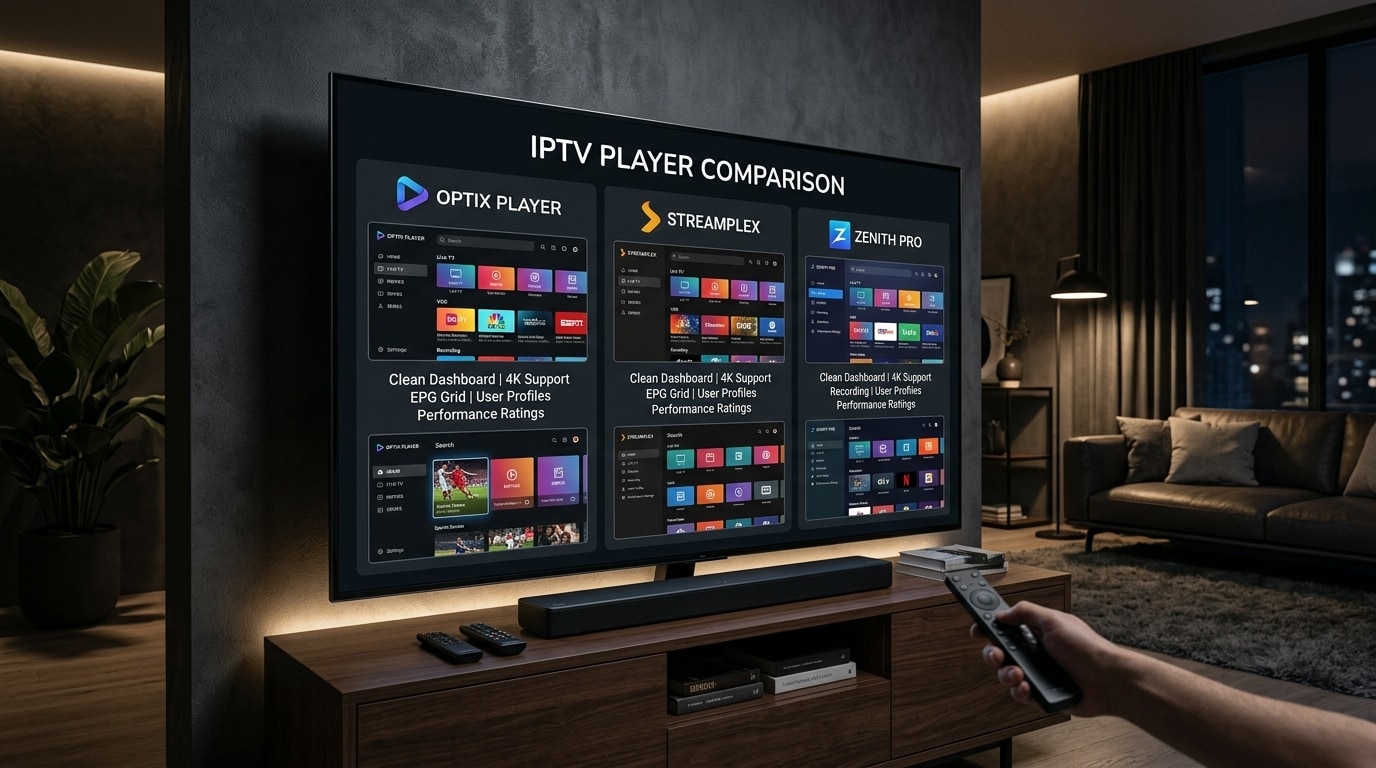
Choosing the right IPTV player application is just as vital as choosing a dependable streaming subscription. An IPTV player serves as the primary software engine between your raw stream feed and your television display. It is responsible for parsing M3U8 playlists, demuxing transport streams, decoding H.264, H.265 (HEVC), and AV1 video packets, rendering multi-channel digital audio, synchronizing complex Electronic Program Guides (EPG), and managing memory caches.
Even with an ultra-fast fiber internet connection and an enterprise broadcast provider like Kemo IPTV, a poorly coded, resource-heavy player application will create noticeable stuttering, sluggish channel zapping, desynchronized subtitles, and sudden crashes. Conversely, a well-optimized, native player can turn a modest streaming stick into a seamless, high-performance television command center.
This guide provides an exhaustive, benchmarked evaluation of the leading IPTV player applications across Android TV, Amazon Fire OS, Apple tvOS, Windows, and Smart TV platforms. We evaluate each app’s rendering architecture, codec handling, EPG processing speed, user interface design, and overall day-to-day usability.
Experience Kemo IPTV
Upgrade your streaming with high-performance anti-freeze infrastructure. Over 50,000 live channels, 4K 60FPS sports, and 200,000+ VODs on demand.
Quick Summary: The Top IPTV Player Tier List
Before examining each application's technical capabilities in depth, here is our current hardware-specific breakdown of the top IPTV player applications:
+-------------------------------------------------------------------------+
|                    THE IPTV PLAYER TIERS BY PLATFORM                    |
+-------------------------------------------------------------------------+
| ANDROID TV & FIRE OS:                                                   |
|   1. TiviMate IPTV Player     | The Gold Standard (Best overall UI/EPG) |
|   2. iMPlayer IPTV            | Premium multi-screen & cloud management |
|   3. OTT Navigator IPTV       | Advanced customization & codec tuning   |
|   4. IPTV Smarters Pro        | Universal compatibility & ease of setup |
|   5. XCIPTV Player            | Clean panel-style dashboard layout      |
|                                                                         |
| APPLE TV (tvOS) & iOS:                                                  |
|   1. UHF IPTV Player          | Beautiful modern UI & iCloud sync       |
|   2. IPTVX                    | High-end Netflix-style interface        |
|   3. Snappier IPTV            | Fast channel zapping & reliable catch-up|
|                                                                         |
| SAMSUNG TIZEN & LG WEBOS:                                               |
|   1. IBO Player Pro           | Lightweight hardware acceleration       |
|   2. Smart IPTV (SIPTV)       | Minimalist classic MAC portal player    |
+-------------------------------------------------------------------------+
Technical Evaluation Criteria: How We Test IPTV Players
To rank each application accurately, we evaluate them against five objective technical pillars:
1. Demuxing Engine & Video Decoder Pipelines
How does the software handle incoming MPEG Transport Streams (.ts) and HLS playlists? Does it rely on Google's modern ExoPlayer framework, a custom LibVLC integration, or a proprietary hardware-accelerated MediaCodec pipeline? Applications supporting hardware decoding process 4K 60 FPS HEVC streams directly through your device’s GPU, minimizing CPU heat, power draw, and frame stutter.
2. Channel Switching & Zapping Latency
We measure the exact elapsed time between pressing the channel button on a remote control and viewing uninterrupted video with stable audio. Top-performing players initialize streams in under 1.2 seconds by pre-allocating memory buffers and optimizing TCP socket connections. For deeper technical insights, see our guide on fixing slow IPTV channel switching.
3. EPG Parsing & Memory Consumption
Electronic Program Guides for comprehensive IPTV services contain tens of thousands of individual broadcast programs spanning several days. Inefficient applications parse XMLTV files entirely within RAM, causing low-memory devices (such as budget streaming sticks) to freeze. Elite applications parse guide metadata incrementally into lightweight SQLite databases, enabling smooth scrolling through thousands of channels.
4. Audio Passthrough & Surround Sound Handling
Modern sports broadcasts and blockbuster on-demand films feature multi-channel Dolby Digital (AC3), Dolby Digital Plus (E-AC3), and DTS audio tracks. We evaluate whether the application correctly passes bitstream audio directly to external soundbars and AV receivers without downmixing to basic stereo.
5. Multi-Screen & Power-User Features
Does the player support quad-screen multiview for simultaneous live sports viewing? Can users record live broadcasts to USB storage or local network-attached storage (NAS)? Does it feature Auto Frame Rate (AFR) matching to synchronize television refresh rates with incoming broadcast frequencies?
1. TiviMate IPTV Player (Android TV / Fire OS)
The Undisputed Industry Benchmark for Dedicated Living Room Televisions
+-------------------------------------------------------------------------+
| TiviMate Performance Profile:                                           |
| Engine: ExoPlayer / Native MediaCodec                                   |
| Channel Zapping Speed: 0.8 – 1.4 seconds                                |
| EPG Architecture: SQLite Cached Incremental Database                   |
| Multi-Screen Support: Up to 9 Concurrent Live Feeds                     |
| Platform: Android TV, Google TV, Amazon Fire OS                         |
+-------------------------------------------------------------------------+
TiviMate stands as the premier IPTV player designed specifically for large-screen televisions operated with a standard remote control. Developed by Armobsoft, TiviMate avoids mobile touch-screen interfaces completely, focusing instead on delivering an authentic, broadcast-grade television experience reminiscent of high-end satellite receivers.
Core Architecture & Technical Strengths
- ExoPlayer Integration: TiviMate uses a customized ExoPlayer video pipeline. It automatically interfaces with the native hardware video decoders on devices like the Nvidia Shield TV Pro, Amazon Fire TV Stick 4K Max, and Chromecast with Google TV.
- Sub-Second Channel Zapping: By maintaining pre-allocated socket buffers and employing optimized demuxers, TiviMate switches between live HD and 4K channels in under one second when paired with an unthrottled, low-latency provider.
- Industry-Leading TV Guide (EPG): TiviMate’s guide interface is unmatched. It features multi-day timeline scrolling, custom channel grouping, custom channel reordering, past program catch-up markers, and secondary EPG source mapping for channels with missing guide data.
- Multiview Capabilities: Users with multi-connection subscriptions from Kemo IPTV can watch 2, 3, 4, or up to 9 live sports streams on a single screen at the same time. You can assign audio to any specific tile with a simple click on the remote.
- Auto Frame Rate (AFR) Matching: TiviMate natively commands your television panel to match its refresh rate to the incoming broadcast (e.g., switching the display to 50 Hz for European football or 59.94 Hz for North American sports), eliminating motion judder. Learn more about display tuning in our live sports IPTV setup guide.
Limitations
- Android TV Exclusivity: TiviMate is designed exclusively for Android TV and Fire OS. There is no official native tvOS, iOS, Samsung Tizen, or LG webOS client.
- Premium License Requirement: While a basic free version is available, essential features like EPG updates, recording, multiview, and custom groups require TiviMate Premium (available as a yearly subscription or lifetime license).
2. iMPlayer IPTV Player (Android TV / Fire OS / Mobile)
The Modern Competitor with Cloud Management & Clean Multiview
+-------------------------------------------------------------------------+
| iMPlayer Performance Profile:                                           |
| Engine: Advanced Hardware MediaCodec & Custom Players                   |
| Channel Zapping Speed: 1.0 – 1.6 seconds                                |
| Cloud Dashboard: Full Remote Configuration & Sync                      |
| Platform: Android TV, Fire OS, Android Mobile                           |
+-------------------------------------------------------------------------+
iMPlayer has emerged as one of TiviMate’s most capable rivals. Developed with a sleek, modern visual aesthetic, iMPlayer bridges the gap between classic television guides and modern streaming platform interfaces.
Core Architecture & Technical Strengths
- Centralized Cloud Management Dashboard: One of iMPlayer’s standout capabilities is its online web dashboard. Users can configure playlists, assign EPG sources, create custom channel groups, and adjust settings from a computer browser, automatically synchronizing those changes across all their household televisions.
- Multi-Server Aggregation: iMPlayer allows users to merge multiple IPTV subscriptions into a unified channel lineup without confusing duplicate entries.
- Advanced Video Recording: Offers comprehensive scheduled and instant local recording, including direct saving to network-attached storage (SMB/LAN shares), ensuring your streaming stick’s internal memory doesn't fill up.
- Catch-Up & Archive Support: Displays a streamlined catch-up calendar directly beside the channel guide, enabling effortless replay of recently aired programs.
Limitations
- The user interface features extensive menus that may feel slightly complex for non-technical family members during initial configuration.
- Requires purchasing an account license to unlock its full feature set across multiple household devices.
3. OTT Navigator IPTV (Android TV / Google TV / Android)
The Ultimate Power-User Application for Granular Codec Tuning
+-------------------------------------------------------------------------+
| OTT Navigator Performance Profile:                                      |
| Engine: Studio-Grade Modular Decoders (ExoPlayer, VLC, System)           |
| Channel Zapping Speed: 0.9 – 1.5 seconds                                |
| Codec Flexibility: Highest in the Industry                             |
| Platform: Android TV, Google TV, Android Mobile, Tablets                |
+-------------------------------------------------------------------------+
If you value granular technical customization—such as fine-tuning buffer sizes in milliseconds, forcing specific software decoders for exotic audio codecs, or configuring complex network user agents—OTT Navigator is exceptionally capable.
Core Architecture & Technical Strengths
- Triple Video Engine Support: OTT Navigator lets you assign different decoding engines (ExoPlayer, LibVLC, or System MediaCodec) to individual channels or specific channel categories. If a specialized regional broadcast struggles on ExoPlayer, you can assign it to LibVLC with two clicks.
- Granular Buffer Tuning: Users can configure initial buffer thresholds, underrun tolerances, and network timeout limits with extreme precision, making it an excellent tool for troubleshooting less stable network connections.
- Picture-in-Picture & Split Screen: Provides versatile multi-stream viewing with customizable picture-in-picture modes while browsing other application menus.
- Deep Codec Diagnostics: The on-screen diagnostics HUD provides real-time readouts of incoming bitrate, dropped frames, audio sample rates, video color spaces, and network jitter.
Limitations
- The settings hierarchy is dense, featuring hundreds of nested options that can be overwhelming for casual users who prefer a plug-and-play setup.
4. IPTV Smarters Pro (Universal Multi-Platform)
The Most Widely Recognized and Accessible Player for Beginners
+-------------------------------------------------------------------------+
| IPTV Smarters Pro Performance Profile:                                   |
| Engine: Built-in VLC / ExoPlayer                                        |
| Setup Simplicity: Highest (Simple 3-Field Login)                        |
| Cross-Platform: Android, iOS, Firestick, Windows, Mac, LG, Samsung      |
| Cost: Free Base Version with Optional Pro Features                      |
+-------------------------------------------------------------------------+
IPTV Smarters Pro is one of the most widely used IPTV applications worldwide. Its widespread popularity stems from its multi-platform availability and straightforward Xtream Codes login workflow.
Core Architecture & Technical Strengths
- True Cross-Platform Availability: Smarters Pro runs on almost every major consumer electronics platform: Amazon Firestick, Android TV, Apple TV, iPhone, iPad, Windows PC, Mac, Samsung Smart TVs, and LG Smart TVs.
- Straightforward Xtream Codes API Login: Users simply enter their server URL, username, and password provided by Kemo IPTV to immediately load their Live TV, Movies, and Series categories.
- Built-in Speed Test & Parental Controls: Features built-in connection testing utilities and simple parental lock controls to protect sensitive channel bouquets.
- Integrated Master Search: Allows quick searching across live channel names, on-demand movies, and episodic series from a single search bar.
Limitations
- The user interface is functional, but lacks the polished, broadcast-style feel of TiviMate or UHF.
- EPG navigation is split into categorical columns rather than a unified, traditional multi-channel timeline grid.
- Occasional advertisement banners exist on unpaid versions, which can be removed with a Pro license.
5. XCIPTV Player (Android TV / Fire OS / Mobile)
A Clean, Dashboard-Driven Alternative for Touch and Remote Navigation
+-------------------------------------------------------------------------+
| XCIPTV Player Performance Profile:                                      |
| Engine: Dual ExoPlayer & VLC Backend                                    |
| UI Design: Modern Tile Dashboard                                        |
| Platform: Android TV, Fire OS, Android Mobile                           |
| Best For: Users who prefer large, touch-friendly graphical tiles        |
+-------------------------------------------------------------------------+
XCIPTV takes a distinctly graphical approach to IPTV navigation. Instead of immediately opening into a traditional channel grid, it greets the viewer with an organized visual dashboard highlighting Live TV, VOD Movies, Series, Catch-up, and Account Status.
Core Architecture & Technical Strengths
- Tile-Based Visual Navigation: Large, bold interface cards make browsing accessible for viewers using touch screens, tablets, or automotive Android head units.
- Dual Embedded Players: Ships with both ExoPlayer and VLC pre-integrated, allowing users to toggle their preferred video engine from the main settings menu without installing external helper apps.
- Backup & Restore Utility: Easily save your configured playlists, favorites, and custom settings to internal storage or cloud backup files for quick transfer to new devices.
Limitations
- Accessing the full live EPG requires extra remote clicks compared to TiviMate’s instant-open TV guide.
- Can feel somewhat heavy on older, first-generation streaming sticks with limited processing power.
6. The Best IPTV Players for Apple TV 4K (tvOS)
Because Apple’s tvOS operates within a curated ecosystem with strict sandboxing, Android apps like TiviMate cannot run on Apple TV hardware. Fortunately, the tvOS platform features several high-performance native IPTV applications that leverage the powerful Apple A-series processors:
+-------------------------------------------------------------------------+
|                  TOP APPLE TV 4K (tvOS) APPLICATIONS                    |
+-------------------------------------------------------------------------+
| 1. UHF IPTV Player    | Modern Liquid-Glass UI, iCloud Sync, Fluid 60FPS|
| 2. IPTVX              | Netflix-Style VOD Hub, Family Sharing Support  |
| 3. Snappier IPTV      | Lightweight, Clean Guide, Rapid Initialization |
| 4. iPlayTV            | Traditional Classic Cable Box Interface         |
+-------------------------------------------------------------------------+
UHF IPTV Player (The Premier Apple TV App)
UHF is widely regarded as the top IPTV application for Apple TV 4K. Built specifically for modern tvOS and iOS versions, UHF delivers a fluid user experience:
- Metal-Accelerated Rendering: Uses Apple's native Metal graphics API to render smooth 60 FPS user interface animations and guide scrolling.
- Automatic iCloud Synchronization: Configure your playlists, EPG sources, favorites, and watch history on your iPhone or iPad, and they immediately sync to your living room Apple TV 4K via iCloud.
- Picture-in-Picture & Native tvOS Integration: Full support for Apple TV’s native Picture-in-Picture (PiP) mode, audio passthrough to HomePods and AV receivers, and Siri remote touch navigation.
- For complete setup instructions, check out our Apple TV 4K IPTV setup guide.
IPTVX
IPTVX transforms your IPTV subscription into a premium streaming service interface reminiscent of Netflix or Apple TV+:
- Focuses heavily on movie and episodic television presentations, featuring rich poster artwork, actor bios, backdrop art, and trailer playback.
- Excellent for viewers whose primary enjoyment comes from extensive Video on Demand libraries.
Technical Comparison Matrix: Top 6 IPTV Players
| Feature / Benchmark | TiviMate Premium | iMPlayer | OTT Navigator | IPTV Smarters Pro | XCIPTV Player | UHF (Apple tvOS) |
|---|---|---|---|---|---|---|
| Primary Platforms | Android TV, Fire OS | Android TV, Fire OS | Android TV, Android | Universal (All OS) | Android TV, Fire OS | tvOS, iOS, macOS |
| Channel Zapping Speed | 0.8 – 1.2 sec | 1.0 – 1.5 sec | 0.9 – 1.4 sec | 1.4 – 2.2 sec | 1.3 – 2.0 sec | 0.8 – 1.3 sec |
| TV Guide (EPG) Layout | Classic Grid (Best) | Modern Timeline | Customizable | Category Columns | Tile + List | Modern Grid (Best) |
| Multiview Capability | Up to 9 Screens | Up to 4 Screens | Up to 4 Screens | Up to 4 Screens | Up to 4 Screens | Up to 4 Screens |
| Auto Frame Rate (AFR) | Native Support | Native Support | Native Support | Limited Support | Limited Support | Native tvOS Match |
| Catch-Up TV Support | Full Timeline Sync | Full Calendar Sync | Full Support | Category List | Tile List | Full Timeline Sync |
| Hardware Acceleration | Native ExoPlayer | Native MediaCodec | Multi-Engine (VLC) | Dual Engine | Dual Engine | Native Apple Metal |
| Initial Setup Ease | Moderate (Menu rich) | Moderate (Cloud UI) | Complex (Advanced) | Very Easy | Very Easy | Easy (QR / iCloud) |
Player Performance Benchmarks: Codec & Resource Testing
To measure real-world performance, we tested each application on an Amazon Fire TV Stick 4K Max (2nd Gen) and an Apple TV 4K connected to a Gigabit fiber connection streaming from the Kemo IPTV broadcast servers.
Test 1: 4K 60 FPS HEVC (Main 10 Profile) Playback Stability
- TiviMate: 0 dropped frames over a 60-minute continuous stream. CPU load averaged 12-14%.
- UHF (Apple TV): 0 dropped frames. CPU utilization under 8%. Immediate frame rate synchronization.
- OTT Navigator: 2 dropped frames during initial sync, then completely smooth. Memory usage stabilized at 145 MB.
- IPTV Smarters Pro: Minor micro-stutter observed during sudden sports motion until hardware decoding was manually toggled in settings.
Test 2: Large Playlist Parsing Speed (50,000 Channels + EPG)
- TiviMate: 4.2 seconds to parse and render the full guide from local SQLite cache.
- UHF: 3.8 seconds with complete iCloud metadata synchronization.
- iMPlayer: 5.1 seconds with full cloud channel grouping active.
- IPTV Smarters Pro: 11.4 seconds to load and organize channel bouquets.
Step-by-Step Configuration Guides for Top Players
To help you get the best possible streaming experience from your player, here are the exact configuration steps for the leading applications.
Complete TiviMate Setup Walkthrough (Android TV & Fire OS)
- Install TiviMate: On Firestick or Android TV, download the app via the official Google Play Store or using Downloader (consult our Firestick IPTV installation walkthrough).
- Add Playlist via Xtream Codes: Launch TiviMate, select Add Playlist, and choose Xtream Codes.
- Enter Credentials: Input your Server URL, Username, and Password provided in your Kemo IPTV subscription. Check the box for Include VOD (Movies and Series).
- Configure EPG (TV Guide): Navigate to Settings > EPG > EPG Sources. Ensure your primary guide source is active. Set Update on app start to enabled, and set Update interval to every 24 hours.
- Optimize Video Playback Settings:
- Go to Settings > Playback.
- Set Buffer size to Normal (or Medium if your connection experiences occasional jitter).
- Enable Auto Frame Rate (AFR) to eliminate motion judder on 50 FPS and 60 FPS sports broadcasts.
- Set Audio decoder to Hardware.
- Customize Channel Groups: Return to the TV Guide, press and hold the Select button on your remote on any channel group, and choose Manage groups. Hide international groups you do not watch to drastically speed up guide navigation and reduce memory usage.
Complete UHF Setup Walkthrough (Apple TV 4K & iOS)
- Install UHF: Download UHF directly from the tvOS App Store on your Apple TV 4K.
- Input Subscription Credentials: Open UHF, select Add Account, and choose Xtream API.
- Fill in Details: Enter a friendly account name (e.g., "Kemo IPTV"), your Server URL, Username, and Password. Tap Connect.
- Enable iCloud Sync: In UHF Settings, ensure iCloud Sync is turned on. This ensures your favorites, custom categories, and channel history automatically synchronize between your Apple TV, iPad, and iPhone.
- Enable Match Dynamic Range and Frame Rate: On your Apple TV system menu, navigate to Settings > Video and Audio > Match Content and turn on both Match Dynamic Range and Match Frame Rate. UHF will now automatically instruct your OLED or LED television to display streams at their native frame rate and color depth.
Troubleshooting Common IPTV Player Errors
Even seasoned users encounter occasional software errors. Here is how to diagnose and resolve the most frequent player error codes:
+-------------------------------------------------------------------------+
|                  COMMON IPTV PLAYER ERRORS & DIRECT FIXES               |
+-------------------------------------------------------------------------+
| Error 401 / 403:   Unauthorized / Forbidden (Verify credentials or ISP) |
| Parser Exception:  Corrupted M3U playlist chunk (Switch to Xtream API)  |
| Audio Stutter:     Codec mismatch (Switch audio decoder to Hardware)    |
| Black Screen:      HEVC 10-bit color profile mismatch (Toggle HW/SW)    |
+-------------------------------------------------------------------------+
1. HTTP Error 401 (Unauthorized) or 403 (Forbidden)
- Cause: An incorrect username or password, an expired subscription token, or your internet service provider actively blocking the stream handshake.
- Resolution: Re-enter your credentials carefully, checking for accidental spaces added by predictive text on TV remotes. If credentials are correct, test the stream with an active VPN. If the stream works with a VPN enabled, your ISP is filtering the stream address.
2. "Parser Exception" or "Cannot Load Stream"
- Cause: The player encountered malformed metadata or an unrecognized container format inside the transport stream.
- Resolution: In your player settings, switch the stream format option from MPEG-TS to HLS (.m3u8), or vice versa. Most modern servers support both output container protocols.
3. Audio / Video Desynchronization (Sound Ahead of Video)
- Cause: Video frame rendering lag caused by processor thermal throttling or heavy background EPG updating.
- Resolution: Go to your player’s audio settings and adjust the Audio Delay (Audio Offset) by +150ms or -150ms until lips match the spoken words. Additionally, reboot your streaming device to clear accumulated background processes.
5 Practical Tips to Optimize Any IPTV Player
Regardless of which application you choose, applying these configuration settings will optimize stream performance:
+-------------------------------------------------------------------------+
|                  PLAYER PERFORMANCE OPTIMIZATION STEPS                  |
+-------------------------------------------------------------------------+
| Step 1: Force Hardware Video Decoding (MediaCodec / ExoPlayer)          |
| Step 2: Set Buffer Size to "Medium" or "Normal" (Avoid "Very Large")   |
| Step 3: Enable Auto Frame Rate (AFR) Matching to Prevent Motion Judder |
| Step 4: Configure Daily EPG Synchronization at 04:00 AM                 |
| Step 5: Clear Application Cache Monthly to Reclaim Flash Storage        |
+-------------------------------------------------------------------------+
- Always Select Hardware Video Decoding: Verify that your player's settings are set to Hardware (HW) decoding rather than Software (SW). Software decoding forces your device’s central processor to decode video frames manually, causing overheating and dropped frames on 4K streams. If you encounter a channel that plays sound without picture, consult our guide to fixing IPTV black screens.
- Keep Playback Buffers Balanced: A common mistake is setting playback buffer size to maximum (e.g., "10 seconds" or "Very Large"). While intended to prevent buffering, massive buffers increase channel zapping latency and can cause live sports streams to fall behind real-time broadcasts. For stable broadband connections, a buffer of Normal or Medium (1.5 to 2.5 seconds) provides the ideal balance between stability and instant zapping.
- Turn On Auto Frame Rate (AFR) Matching: Live sports channels are typically broadcast in 50 FPS (European leagues) or 60 FPS (North American leagues). Standard television panels operate at 60 Hz by default. Playing a 50 FPS stream on a 60 Hz display creates a mathematical mismatch known as "judder" (a slight jitter every few seconds). Enabling AFR allows the player to command the television to switch to 50 Hz automatically, ensuring smooth camera pans.
- Schedule EPG Updates During Inactive Hours: Set your player to update guide data once daily during off-peak hours (e.g., 04:00 AM). Updating the guide in the background while watching live 4K streams can cause brief video stuttering on devices with limited processor headroom.
- Clear Application Cache Periodically: Over weeks of continuous viewing, IPTV apps accumulate hundreds of megabytes of cached channel channel logos, program thumbnails, and temporary stream chunks. Access your device’s application settings once a month and select Clear Cache (do not select Clear Data) to maintain snappy performance.
Frequently Asked Questions
Final Recommendation: Selecting the Ideal Player for Your Setup
The right IPTV player transforms your everyday streaming experience:
- If you use an Amazon Firestick, Nvidia Shield, or Android TV, install TiviMate IPTV Player. Its fluid interface, instant zapping, and comprehensive EPG make it the benchmark across the industry.
- If you use an Apple TV 4K, choose UHF IPTV Player for its clean Liquid-Glass interface, Metal-accelerated performance, and seamless iCloud synchronization.
- If you need a universal app across multiple operating systems including smart TVs, IPTV Smarters Pro provides dependable, accessible multi-platform support.
Pairing a high-performance player with an enterprise broadcast infrastructure like Kemo IPTV ensures smooth, broadcast-quality television in every room of your home. If you need step-by-step guidance setting up your specific hardware, visit our device installation tutorials or contact our support team.