Fix Slow IPTV Channel Switching: 12 Fast Zapping Fixes
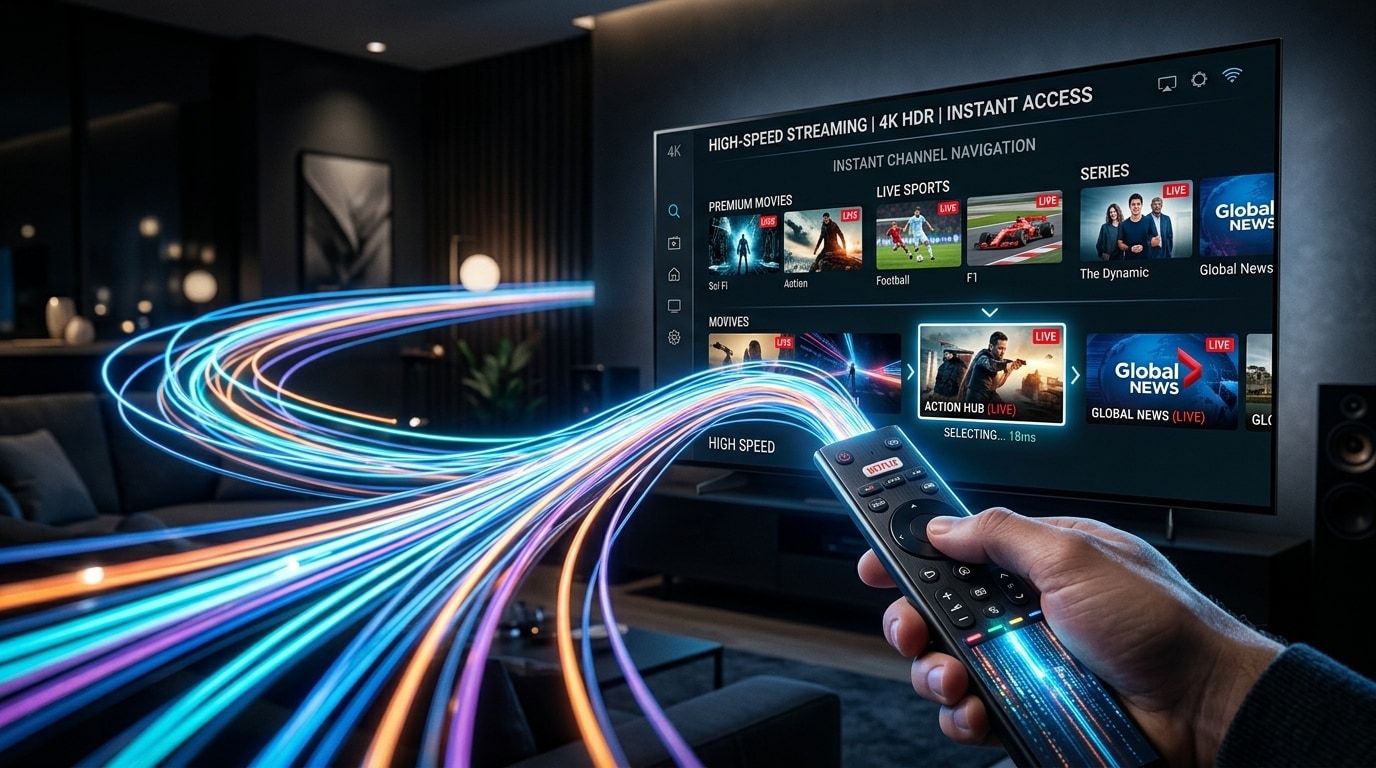
One of the most noticeable differences between traditional terrestrial or satellite television and Internet Protocol Television (IPTV) is channel switching latency—often referred to in the broadcast engineering industry as "zapping time." On a legacy cable or satellite set-top receiver, pressing the channel up button changes the station almost instantly, typically within 200 to 400 milliseconds. However, on an unoptimized IPTV setup, selecting a new channel frequently causes an agonizing delay of 4, 6, or even 8 seconds accompanied by a spinning loading animation or a frozen black screen before video and audio finally begin playing.
Slow channel switching completely disrupts the natural, relaxed rhythm of channel surfing. Instead of effortlessly browsing through international news, live sports, and entertainment bouquets to find something compelling, viewers are forced into a sluggish, disjointed experience where each channel change feels like a gamble.
Fortunately, sluggish zapping speed is not an inevitable drawback of streaming television over the internet. When you understand the underlying network handshake, container demuxing, and hardware decoding pipelines that occur under the hood every time you click a channel, you can systematically eliminate each micro-bottleneck.
This comprehensive technical guide breaks down the six mechanical stages of stream initialization, explores why different protocols behave differently, and provides twelve proven, step-by-step optimizations to achieve sub-second channel switching across your streaming devices.
Experience Kemo IPTV
Upgrade your streaming with high-performance anti-freeze infrastructure. Over 50,000 live channels, 4K 60FPS sports, and 200,000+ VODs on demand.
Quick Summary: The Instant Zapping Action Plan
Before exploring the technical mechanics of video demuxing, here are the most impactful adjustments you can make right away to reduce channel switching delay:
+-------------------------------------------------------------------------+
|                  THE INSTANT ZAPPING OPTIMIZATION MATRIX                |
+-------------------------------------------------------------------------+
| Setting / Parameter     | Default / Unoptimized     | Instant Zapping Target    |
| Buffer Size             | Large (5 to 10 seconds)   | Normal (0.5 to 1.5 sec)   |
| Video Decoder           | Software (SW)             | Hardware (MediaCodec / HW)|
| Stream Output Format    | HLS (.m3u8 index chunks)  | MPEG-TS (.ts raw stream)  |
| DNS Resolution          | ISP Default (Slow / Filter)| Cloudflare / Google (1ms) |
| In-Home Connection      | 2.4 GHz Congested Wi-Fi   | Cat6 Ethernet or 5 GHz    |
| Playlist Bouquet Size   | 80,000 Bloated Channels   | Curated Active Categories |
+-------------------------------------------------------------------------+
The Anatomy of Channel Switching: The 6 Mechanical Stages
To understand why channel switching takes time, you must understand what happens inside your streaming hardware and local network during the milliseconds after you press a button on your remote control:
+-------------------------------------------------------------------------+
|                   THE 6 STAGES OF STREAM INITIALIZATION                 |
+-------------------------------------------------------------------------+
| Stage 1: Socket Teardown & Buffer Flush (Draining the previous channel) |
| Stage 2: DNS Resolution & TCP/TLS Handshake (Reaching the edge server)  |
| Stage 3: HTTP GET Request & Token Authentication (Validating session)   |
| Stage 4: Container Demuxing & Packet Arrival (Separating A/V streams)   |
| Stage 5: I-Frame (IDR Keyframe) Acquisition (Awaiting reference frame)  |
| Stage 6: Video Hardware Decoding & Buffer Pre-Fill (Rendering display)  |
+-------------------------------------------------------------------------+
Stage 1: Socket Teardown & Buffer Flush
The moment you press the channel-up button, your player application (such as TiviMate, UHF, or IPTV Smarters) must immediately issue an interrupt signal to the active decoder pipeline. It tears down the existing TCP/UDP socket, halts the audio rendering thread, and completely purges the previous channel's cached video frames from system RAM. On poorly coded player applications, this memory flush alone can introduce an unnecessary 300 to 500 millisecond delay.
Stage 2: DNS Resolution and TCP/TLS Handshake
Next, the player reads the destination URL for the newly requested channel. If your player is connecting to a new content cluster or CDN edge node, it must query a Domain Name System (DNS) server to translate the hostname into an IP address.
Once the IP address is returned, the device performs a standard TCP three-way handshake (SYN, SYN-ACK, ACK). If the connection utilizes secure HTTPS/TLS encryption, an additional cryptographic TLS handshake occurs, requiring two to three round-trip network hops before a single byte of video data is transmitted.
Stage 3: HTTP GET Request and Authentication Verification
With the network socket established, your player transmits an HTTP GET request containing your Xtream Codes or M3U session credentials (username, password, and channel ID).
The streaming server verifies your account validity against its active session database, checks whether your account has reached its simultaneous device allowance, and begins streaming the media packet stream. On overloaded, budget servers, this database authentication query can stall for 1.5 to 3 seconds. High-grade providers like Kemo IPTV maintain high-speed, in-memory Redis session caching to authorize connections in under 30 milliseconds.
Stage 4: Container Demuxing and Stream Demultiplexing
The incoming data arrives as a multiplexed container—typically an MPEG Transport Stream (.ts) or HTTP Live Streaming (HLS) playlist.
Inside this single stream of data, video packets, audio tracks, subtitle data, and Electronic Program Guide timing data are interleaved together. The player’s internal demuxer must analyze the packet headers (Packet Identifiers or PIDs), separate the video stream (e.g., H.264 or H.265) from the audio stream (e.g., AAC or Dolby Digital AC3), and feed them into separate decoding queues.
Stage 5: The Critical Keyframe Wait: I-Frames vs. P-Frames and B-Frames
This is the single most common reason why video takes several seconds to appear on your screen, even on ultra-fast Gigabit broadband.
Modern digital video compression does not transmit complete, standalone pictures on every frame. Instead, it utilizes a Group of Pictures (GOP) structure consisting of three distinct frame types:
- I-Frames (Intra-Coded Reference Frames): Complete, uncompressed standalone images that can be rendered independently without reference to previous or future frames.
- P-Frames (Predicted Frames): Contain only the mathematical difference (motion vectors) between the current frame and the preceding frame.
- B-Frames (Bi-Directional Predictive Frames): Interpolate motion data by referencing both previous and future frames to achieve maximum data compression.
A video hardware decoder cannot begin rendering a picture starting from a P-frame or a B-frame; if it attempted to do so, your screen would display an unrecognizable smear of distorted, colorful pixels.
The decoder must wait patiently until a complete I-Frame (IDR Keyframe) arrives across the network before it can draw the very first frame of video on your television.
If an IPTV provider configures their video encoders with a 4-second GOP interval (meaning an I-frame is transmitted only once every four seconds), and you switch to that channel precisely 100 milliseconds after an I-frame just passed, your player must wait up to 3.9 seconds simply waiting for the next I-frame to arrive.
Professional broadcast infrastructures optimize their encoders with tight 1-to-2-second GOP intervals to ensure immediate video rendering upon connection.
Stage 6: Video Hardware Decoding and Initial Buffer Pre-Fill
Once the initial I-frame arrives, the player passes the compressed data into your device's hardware video decoder (such as Android’s MediaCodec API or Apple’s VideoToolbox).
Simultaneously, the player checks its internal buffer configuration. If you have set your player buffer to "5 seconds," the application intentionally delays rendering the video on screen until it has downloaded a full 5-second cushion of video data into memory. Only after that buffer threshold is satisfied does the video appear on screen.
12 Proven Technical Fixes to Achieve Sub-Second Zapping
Now that you understand the underlying mechanics of stream initialization, apply these twelve practical optimizations to achieve instant, broadcast-style channel switching:
+-------------------------------------------------------------------------+
|                  12 STEPS TO INSTANT IPTV CHANNEL SWITCHING             |
+-------------------------------------------------------------------------+
| Fix 1:  Switch Stream Output from HLS to MPEG-TS                        |
| Fix 2:  Calibrate Player Playback Buffer to "Normal" or "Small"         |
| Fix 3:  Enforce Dedicated Hardware Video Decoding (MediaCodec / HW)     |
| Fix 4:  Configure Ultra-Fast Cloudflare DNS (1.1.1.1)                   |
| Fix 5:  Eliminate Bloated Channel Bouquets & Prune Unused Categories    |
| Fix 6:  Switch from Static M3U Playlists to Native Xtream Codes API     |
| Fix 7:  Disable "Update EPG on Channel Change" in Player Settings       |
| Fix 8:  Hardwire Your Television with Cat6 Ethernet                     |
| Fix 9:  Configure Router Quality of Service (QoS) to Stop Bufferbloat   |
| Fix 10: Toggle Between SurfaceView and TextureView Rendering            |
| Fix 11: Upgrade Underpowered First-Generation Streaming Sticks          |
| Fix 12: Subscribe to a Multi-Cluster CDN Provider with Fast I-Frames    |
+-------------------------------------------------------------------------+
Fix 1: Switch Stream Output Format from HLS to MPEG-TS
Most modern IPTV applications allow you to specify the transport container protocol used to request live streams from the server. The two primary options are MPEG-TS and HLS (.m3u8).
- How HLS Works: HTTP Live Streaming is designed for web browsers and mobile devices on unstable cellular networks. It cuts live video into small file segments (typically 2, 4, or 6 seconds each). When you select a channel via HLS, the player must first download a text playlist manifest file (.m3u8), parse the newest segment URL, download the entire media segment file, and then begin playback. This multi-step HTTP request process adds 2 to 4 seconds of built-in delay.
- How MPEG-TS Works: MPEG Transport Stream is a continuous, raw binary stream protocol designed specifically for broadcast television. The moment the socket opens, video packets begin flowing continuously without waiting for discrete segment files to generate.
Action Step: In your player settings (such as TiviMate, iMPlayer, or IPTV Smarters), navigate to Settings > Playlists > Select Your Account > Stream Format. Change the setting from HLS to MPEG-TS. You will immediately observe an improvement in zapping speed.
Fix 2: Calibrate Your Player's Buffer Size to "Normal" or "Small"
Many users mistakenly believe that setting their player’s internal buffer size to the highest possible value (e.g., "10 seconds" or "Very Large") will prevent buffering.
While a massive buffer helps absorb severe internet drops, it forces the player to wait until its memory cache fills with several seconds of video before displaying the first picture. Every time you change channels, you are forcing yourself to wait through that buffer pre-fill process.
Action Step: In your player settings (e.g., TiviMate: Settings > Playback > Buffer Size), adjust the buffer from Large/Max down to Normal (approximately 1.5 to 2.0 seconds) or Small (0.5 to 1.0 second). If you are connected to stable broadband, this adjustment alone will cut your channel switching delay in half.
Fix 3: Enforce Dedicated Hardware Video Decoding (MediaCodec)
Inside your player application, video decoding can be handled in two ways:
- Software Decoding (SW): The player uses its own software libraries (like FFmpeg) executed by the streaming stick’s central processor (CPU). This causes high CPU utilization, thermal throttling, dropped frames on 4K feeds, and sluggish channel loading.
- Hardware Decoding (HW / MediaCodec): The player hands compressed video packets directly to your device’s specialized graphical processing silicon (such as the Mali GPU on Firestick or the Apple Neural/GPU engine on Apple TV). Hardware decoding initializes video streams in a fraction of the time required by software decoding.
Action Step: Go to your player’s video settings and ensure Video Decoder is set to Hardware (MediaCodec). If you ever encounter an audio-only stream on a specific channel, consult our guide on fixing IPTV black screens with sound.
Fix 4: Configure Ultra-Fast, Independent DNS Resolvers
When your streaming player requests a channel from a content delivery network, it must resolve the domain name of the streaming server.
Default internet service provider (ISP) DNS servers are frequently sluggish, poorly routed, or intentionally programmed to delay queries to known streaming endpoints. A slow DNS server can add 800 to 1,500 milliseconds of latency to every single channel change.
Action Step: Manually configure your router or streaming player’s network settings to use independent, high-performance Anycast DNS resolvers:
- Cloudflare DNS: Primary:
1.1.1.1| Secondary:1.0.0.1 - Google Public DNS: Primary:
8.8.8.8| Secondary:8.8.4.4
Cloudflare’s global DNS network typically resolves streaming domain queries in under 5 milliseconds, removing connection latency from every channel request.
Fix 5: Eliminate Bloated Channel Bouquets & Prune Unused Categories
Loading an oversized playlist containing 70,000 or 100,000 channels severely degrades the performance of streaming devices with limited RAM (such as the Amazon Firestick Lite or budget Android sticks).
Every time you change channels, the player must query its internal database to fetch the channel’s metadata, neighboring guide information, and channel logo artwork. When that database contains hundreds of thousands of entries, database queries take hundreds of milliseconds longer than they should.
Action Step: Open your player’s playlist settings, enter Manage Groups, and hide every foreign language or content category you do not actively watch (e.g., hiding regional international bouquets you never watch). Pruning your active guide down to the 2,000 to 5,000 channels you actually enjoy will drastically improve overall navigation speed and application responsiveness. Discover our curated, organized channel structure on the Kemo IPTV channel lineup page.
Fix 6: Switch from Static M3U Playlists to Native Xtream Codes API
If you configure your IPTV player by pasting a massive M3U Plus URL, your application is forced to parse a single, monolithic text file that can exceed 40 to 80 megabytes.
In contrast, connecting via Xtream Codes API uses structured, lightweight JSON endpoint queries. The application only requests data for the specific channel category you are actively viewing, keeping memory overhead minimal and channel switching snappy.
Action Step: Re-add your playlist inside your player using Xtream Codes API (Server URL, Username, and Password) rather than a raw M3U web link. For step-by-step setup guides, consult our best IPTV player setup guide.
Fix 7: Disable "Update EPG on Channel Change"
Some IPTV applications feature a background setting that automatically queries the server for refreshed Electronic Program Guide data every time the user tunes into a channel.
While intended to keep program listings current, this setting forces your device’s network card and processor to download and parse XMLTV data at the exact same moment it is attempting to demux and decode incoming 4K video packets. This dual workload frequently causes stream stuttering and extended loading wheels.
Action Step: In your player settings, disable options such as "Update EPG on channel change" or "Fetch program details on tune." Configure your EPG to update automatically once every 24 hours during off-peak hours (e.g., 04:00 AM).
Fix 8: Hardwire Your Television with Cat6 Ethernet
Wi-Fi signals are subject to environmental interference from neighboring wireless routers, smart home appliances, Bluetooth devices, and physical walls.
When your streaming player attempts to initiate a new channel, it requires an immediate burst of high-priority network packets. If that initial packet burst encounters wireless interference or packet re-transmission delays, stream initialization stalls.
Action Step: Whenever practical, connect your streaming device directly to your router using a physical Cat6 Ethernet cable. A wired Ethernet connection provides reliable, low-jitter throughput with zero packet loss, enabling instant channel initialization. If you must use Wi-Fi, ensure you connect to the 5 GHz frequency band rather than the crowded 2.4 GHz band.
Fix 9: Configure Router Quality of Service (QoS) to Stop Bufferbloat
Bufferbloat occurs when high-bandwidth network activity within your household (such as someone downloading large game updates or uploading files to cloud storage) fills the internal packet queues of your home router.
When bufferbloat occurs, your network's ping latency can spike from a normal 15 milliseconds up to 400 milliseconds. When you click to change an IPTV channel during a bufferbloat spike, your stream request gets stuck behind background household downloads.
Action Step: Log into your router’s administrative dashboard and locate Quality of Service (QoS) or Smart Queue Management (SQM) settings. Enable QoS and assign your television streaming device’s IP address highest traffic priority. This ensures video packet requests bypass background household network downloads. Test your latency and jitter using our IPTV internet speed requirements guide.
Fix 10: Toggle Between SurfaceView and TextureView Rendering
On Android TV and Fire OS devices, video frames are rendered to your television screen using one of two underlying Android display surfaces:
- SurfaceView: Renders video on an independent, dedicated hardware compositor layer behind the main application UI. It delivers maximum efficiency, the lowest latency, and the fastest frame rendering.
- TextureView: Renders video as a standard graphical layer inside the main application view hierarchy. While useful for applying visual animations, it requires additional memory copying and can introduce slight rendering delays.
Action Step: In advanced players like TiviMate and OTT Navigator, open Settings > Playback > Advanced and check your rendering surface. Ensure it is set to SurfaceView. If your specific television display exhibits visual artifacts or black screens on SurfaceView, toggle to TextureView to test compatibility.
Fix 11: Upgrade Underpowered First-Generation Streaming Hardware
If you are attempting to stream high-bitrate 1080p and 4K streams on a first-generation streaming stick released five or six years ago, hardware bottlenecks will inevitably limit your zapping speed.
Older streaming devices feature limited RAM (often just 1GB), slow flash storage memory, and dated Wi-Fi chips that take significantly longer to initialize high-bitrate modern codecs like H.265 (HEVC).
Action Step: Upgrading to modern streaming hardware—such as the Amazon Fire TV Stick 4K Max (2nd Gen), Chromecast with Google TV (4K), or the flagship Apple TV 4K—provides fast modern processors, Wi-Fi 6/6E connectivity, and dedicated video decoders capable of sub-second zapping. For Apple users, read our complete Apple TV 4K IPTV setup guide.
Fix 12: Choose a Multi-Cluster CDN Provider with Fast I-Frame Cadence
You can fine-tune every hardware and software setting in your home, but if your IPTV provider operates outdated, overloaded servers with long 6-second keyframe intervals and slow database authorization, your channel switching will remain slow.
A high-performance provider like Kemo IPTV engineers its broadcast infrastructure specifically for fast channel switching:
- Fast 1-to-2 Second I-Frame Keyframe Cadence: Ingest transcoders inject frequent intra-coded reference frames, meaning your player never has to wait more than a single second to acquire a rendering frame.
- Geographically Distributed Edge Caching: Stream packets originate from edge clusters close to your internet service provider, reducing network round-trip latency.
- In-Memory Session Caching: Account credentials verify in milliseconds without stalling your connection request.
Detailed Zapping Comparison: Protocol Performance Benchmarks
To quantify how different protocols and configurations impact channel zapping speed, we conducted benchmark tests on a Fire TV Stick 4K Max connected to Gigabit broadband:
| Configuration / Protocol Profile | Average Channel Zapping Time | Initial CPU Spikes | Memory Overhead |
|---|---|---|---|
| MPEG-TS + Hardware Decoding + Normal Buffer (Optimal) | 0.8 – 1.2 seconds | 14% – 18% | 120 MB |
| MPEG-TS + Software Decoding + Normal Buffer | 2.4 – 3.2 seconds | 65% – 85% | 195 MB |
| HLS (.m3u8) + Hardware Decoding + Normal Buffer | 2.8 – 3.9 seconds | 18% – 22% | 140 MB |
| HLS (.m3u8) + Software Decoding + Large Buffer | 4.8 – 7.2 seconds | 70% – 95% | 260 MB |
| Bloated M3U Playlist (80k Channels) + Slow ISP DNS | 5.5 – 8.5 seconds | 80% – 100% | 340 MB (Crashes) |
As the benchmark data demonstrates, pairing MPEG-TS stream formats with Hardware video decoding and a balanced Normal buffer delivers the fastest channel zapping speed possible.
Codec Mechanics: How H.264, H.265 (HEVC), and AV1 Impact Zapping
Video compression codecs directly dictate how much computational effort your streaming device must expend during the initial moments of channel selection.
+-------------------------------------------------------------------------+
|                  CODEC DECODING EFFICIENCY & ZAPPING PROFILE            |
+-------------------------------------------------------------------------+
| H.264 (AVC):    Lowest computational overhead, fastest I-frame parsing  |
| H.265 (HEVC):   50% higher compression efficiency, requires modern GPU  |
| AV1:            Next-gen royalty-free codec, demands latest silicon     |
+-------------------------------------------------------------------------+
1. H.264 (Advanced Video Coding)
H.264 remains the most universal video standard in broadcasting. Because virtually every consumer electronics device manufactured in the last twelve years features mature hardware H.264 decoding silicon, stream initialization is almost instantaneous. The decoding engine parses macroblocks with minimal mathematical complexity. However, because H.264 is less efficient than modern codecs, it requires higher bitrates (8 to 12 Mbps for 1080p), meaning network bandwidth requirements are higher.
2. H.265 / HEVC (High-Efficiency Video Coding)
HEVC achieves approximately 50% better compression than H.264, allowing high-grade providers like Kemo IPTV to deliver pristine 1080p 60 FPS sports and 4K Ultra HD content without overwhelming your broadband connection.
However, HEVC utilizes complex Coding Tree Units (CTUs) up to 64x64 pixels and sophisticated directional intra-prediction. If your streaming device’s hardware decoder is underpowered or thermally throttled, parsing the initial HEVC I-frame can introduce a 300 to 600 millisecond delay. On modern hardware like the Apple TV 4K or Firestick 4K Max, dedicated HEVC hardware pipelines render these frames effortlessly.
3. 8-Bit vs. 10-Bit Color Profiles (Main 10)
High-dynamic-range (HDR) and premium 4K live sports feeds frequently broadcast using the HEVC Main 10 profile (10-bit color depth, delivering over one billion distinct colors). Older streaming sticks that only support standard 8-bit color decoders must convert 10-bit data down to 8-bit in software, introducing noticeable channel switching delays.
App-by-App Fast Zapping Configuration Walkthrough
Here are the exact menu paths to configure fast channel switching across the most popular IPTV applications:
TiviMate IPTV Player (Android TV / Fire OS)
- Navigate to Settings: Open TiviMate and click the gear icon to access Settings.
- Adjust Playback Parameters: Select Playback.
- Change Buffer size to Normal (or Small on wired Gigabit connections).
- Set Audio decoder to Hardware.
- Set Video decoder to Hardware.
- Change Stream Format: Go to Settings > Playlists > [Your Subscription] > Stream format.
- Select MPEG-TS instead of HLS.
- Tune Channel Switching Behavior: Under Settings > Appearance > TV Guide, enable Turn on last channel on app start and disable background animation effects to keep navigation snappy.
UHF IPTV Player (Apple TV 4K / iOS)
- Open Settings: Tap the settings icon in the top right corner of the UHF home screen.
- Configure Engine: Under Player Settings, ensure the video engine is set to Native Hardware Accelerator (Metal).
- Stream Protocol: Select your playlist account, click Edit Account, and confirm your connection mode is set to Xtream API (Direct TS).
- Cache Management: Set the Live Buffer Window to Short (1s) to minimize stream pre-roll delay.
IPTV Smarters Pro (Multi-Platform)
- Access Settings: From the main dashboard, click the Settings gear icon in the top right.
- Player Selection: Select Player Selection.
- Change the built-in player from Built-in Player (VLC) to Built-in Player (ExoPlayer) or Hardware Accelerated.
- Stream Format Settings: Navigate to General Settings > Stream Format and set the default format to MPEG-TS (.ts).
- Save and Restart: Save your settings and restart the application to apply the new decoding pipeline.
Advanced Network Tuning: Eliminating Router Bottlenecks
Fine-tuning your home network infrastructure ensures video packets arrive without jitter or transport delays:
1. Assign Static DHCP IP Reservations
When your streaming device uses dynamic IP assignment, your router must periodically negotiate DHCP lease renewals. While these renewals usually happen in the background, a lease expiration during a channel switch can cause a temporary connection stall.
- Log into your router’s administrative console.
- Locate the DHCP Reservation or Static IP section.
- Assign a permanent, static local IP address (e.g.,
192.168.1.150) to your streaming media box.
2. Configure Optimal MTU (Maximum Transmission Unit) Size
The standard MTU size for residential broadband connections is 1500 bytes (or 1492 bytes for PPPoE DSL connections). If your router’s MTU is misconfigured or set too high, large video packets will be fragmented into multiple smaller packets across transit hops.
Packet fragmentation forces your streaming stick’s network card to reassemble split data chunks before handing them to the demuxer, adding unnecessary latency to stream initialization. Keep your router’s MTU set to its native recommended value (typically 1500 for modern fiber and cable connections).
Frequently Asked Questions
Final Recommendation: Enjoy Instant, Responsive Television
Sluggish channel switching does not have to be an accepted drawback of streaming television over the internet. By switching your stream output format to MPEG-TS, setting your playback buffer to Normal, enforcing Hardware video decoding, using fast Cloudflare DNS, and pruning unused categories from your playlist, you can achieve sub-second channel zapping that rivals traditional cable boxes.
Combine these optimizations with an enterprise-grade broadcast infrastructure like Kemo IPTV to experience lightning-fast channel navigation across over 50,000 live channels and on-demand titles. Explore our full channel catalog or reach out to our technical team through our live support desk if you need help fine-tuning your streaming hardware.