Internet Speed for IPTV: Exact Mbps for 4K Buffer-Free
One of the most persistent misconceptions in home entertainment is that subscribing to a 500 Mbps or 1 Gbps fiber broadband package guarantees an entirely buffer-free streaming experience. Subscribers frequently find themselves bewildered when a live 4K championship sports stream repeatedly pauses, stutters, or buffers on a high-speed fiber connection, while a neighbor with a modest 50 Mbps connection streams the exact same broadcast without a single hitch.
The reason for this apparent paradox lies in the fundamental difference between raw download bandwidth and transmission stream stability. Traditional file downloads and web browsing are asynchronous: if a web page takes an extra 400 milliseconds to download, or if a large software update pauses for three seconds, human perception barely registers the delay.
However, Internet Protocol Television (IPTV) is a real-time, synchronous broadcast protocol. Video packets are decoded and rendered on your television screen continuously at 50 or 60 frames every single second. If packet transit suffers from excessive jitter, high latency, localized packet loss, or artificial internet service provider (ISP) throttling, your player’s internal buffer depletes, and playback halts—regardless of how many theoretical megabits per second your broadband package advertises.
This comprehensive engineering guide analyzes the true network requirements for uninterrupted IPTV streaming. We break down the exact bandwidth needed for Standard Definition, Full HD, and uncompressed 4K Ultra HD streams, demonstrate how to calculate multi-screen household headroom, examine the critical roles of ping latency and jitter, explain how to diagnose ISP throttling, and provide proven in-home network optimizations to eliminate streaming bottlenecks.
Experience Kemo IPTV
Upgrade your streaming with high-performance anti-freeze infrastructure. Over 50,000 live channels, 4K 60FPS sports, and 200,000+ VODs on demand.
Quick Summary: The Real IPTV Speed Benchmarks
Before examining network packet dynamics in detail, here are the real-world bandwidth benchmarks required for consistent, buffer-free streaming:
+-------------------------------------------------------------------------+
|                  REAL-WORLD IPTV BANDWIDTH REQUIREMENTS                 |
+-------------------------------------------------------------------------+
| Stream Resolution & Format     | Clean Stream Bitrate | Recommended Speed|
| Standard Definition (SD 480p)  | 2.0 – 3.5 Mbps       | 10 Mbps Minimum  |
| High Definition (HD 720p 60fps)| 5.0 – 7.5 Mbps       | 20 Mbps Minimum  |
| Full HD (FHD 1080p Standard)   | 8.0 – 11.0 Mbps      | 30 Mbps Minimum  |
| Full HD Sports (1080p 60fps)   | 12.0 – 16.0 Mbps     | 40 Mbps Minimum  |
| True 4K Ultra HD (2160p 60fps) | 20.0 – 35.0 Mbps     | 60 Mbps Minimum  |
| Multi-Screen 4K (3 Displays)   | 60.0 – 105.0 Mbps    | 150 Mbps Minimum |
+-------------------------------------------------------------------------+
The 4 Network Metrics That Actually Dictate IPTV Quality
To understand why a fast broadband connection can still experience video buffering, you must examine the four distinct metrics that govern network performance:
+-------------------------------------------------------------------------+
|                  THE 4 METRICS OF STREAMING NETWORK HEALTH              |
+-------------------------------------------------------------------------+
| 1. Bandwidth (Throughput):  Volume of data transferred per second (Mbps)|
| 2. Latency (Ping):         Time required for a packet to reach server   |
| 3. Jitter (Packet Variance):Variation in packet arrival timing (ms)     |
| 4. Packet Loss:            Percentage of data packets lost in transit   |
+-------------------------------------------------------------------------+
1. Bandwidth (Throughput)
Bandwidth measures the maximum volume of digital information that can travel across your connection in one second, expressed in Megabits per second (Mbps). Think of bandwidth as the width of a highway: a wider highway allows more vehicles (data packets) to travel side-by-side.
While adequate bandwidth is necessary to accommodate a stream’s bitrate, having an excessively wide highway does not help if the vehicles encounter sudden roadblocks or detours along the way.
2. Latency (Ping)
Latency measures the physical round-trip time required for a packet of data to travel from your streaming device to the IPTV broadcast server and return an acknowledgment, measured in milliseconds (ms).
- Excellent for IPTV: Under 30 ms
- Acceptable for IPTV: 30 ms to 65 ms
- High Risk of Buffering: Over 100 ms
High latency delays channel zapping handshakes, slows down Electronic Program Guide (EPG) synchronization, and increases the time required for your player application to request missing data chunks. For more details on channel zapping, explore our guide on fixing slow IPTV channel switching.
3. Jitter (The Silent Stream Killer)
Jitter measures the statistical variance in packet arrival intervals over time. In an ideal network environment, video packets arrive at your device with rhythmic consistency: packet 1 arrives at 10ms, packet 2 at 20ms, packet 3 at 30ms.
If network congestion occurs along your ISP’s transit routes, packet arrival becomes erratic: packet 1 arrives at 10ms, packet 2 is delayed until 85ms, and packet 3 arrives at 90ms.
Even if your overall bandwidth is high, erratic jitter causes your streaming player’s incoming packet buffer to momentarily run dry during the 75ms gap. When the buffer empties, playback halts and displays a loading spinner.
- Target Jitter for IPTV: Under 5 ms
- Problematic Jitter: 15 ms to 30 ms
- Severe Buffering Guaranteed: Over 50 ms
4. Packet Loss (The Primary Cause of Artifacting & Freezing)
Packet loss occurs when network routers drop data packets entirely due to congestion or hardware buffer overruns.
With standard web downloads (such as loading a PDF or downloading a software file), dropped packets are re-transmitted automatically via TCP acknowledgment loops without human detection.
In live video broadcasting, there is rarely time to request a re-transmission before the frame must be rendered on screen. Dropped packets manifest as audio dropouts, colorful square pixelation blocks across your screen, or a total stream freeze.
- Target Packet Loss: 0.0%
- Acceptable Threshold: Under 0.2%
- Visible Stream Degradation: Over 1.0%
Exact Bandwidth Calculations by Video Resolution & Codec
Different types of television content consume wildly different amounts of data. Here is a granular technical analysis of stream bitrates across modern broadcast codecs:
+-------------------------------------------------------------------------+
|              DETAILED STREAM CONSUMPTION & BITRATE MATRIX               |
+-------------------------------------------------------------------------+
| Format / Codec        | Bitrate Range     | Hourly Data | 3-Hour Match  |
| 720p HD (H.264)       | 4.5 – 6.5 Mbps    | 2.0 – 2.9 GB| 6.0 – 8.7 GB  |
| 1080p FHD (H.264)     | 8.0 – 12.0 Mbps   | 3.6 – 5.4 GB| 10.8 – 16.2 GB|
| 1080p 60fps (HEVC)    | 12.0 – 16.0 Mbps  | 5.4 – 7.2 GB| 16.2 – 21.6 GB|
| 4K UHD 60fps (HEVC)   | 22.0 – 32.0 Mbps  | 9.9 – 14.4GB| 29.7 – 43.2 GB|
+-------------------------------------------------------------------------+
1. High Definition (720p and 1080i Standard)
Standard cable networks, news channels, and daytime programming typically broadcast in 720p or 1080i at 25 or 30 frames per second. These streams carry a bitrate of 5.0 to 8.0 Mbps when encoded in H.264. To stream these channels without interruption, your device requires a stable connection delivering at least 15 to 20 Mbps.
2. Full HD 1080p at 60 FPS (Live Sports & Action Cinema)
Live sports broadcasts—including Premier League football, NBA basketball, NFL football, and Formula 1—must broadcast at 50 or 60 frames per second to eliminate motion blur.
Because a 60 FPS stream delivers twice as many visual frames per second as traditional cinema, the raw stream bitrate increases to 12.0 to 17.0 Mbps. To ensure smooth playback during high-action sequences, your connection must provide at least 35 to 40 Mbps of clean, dedicated throughput. Discover how to optimize sports streaming in our live sports IPTV setup guide.
3. True 4K Ultra HD (2160p at 60 FPS with 10-Bit Color)
Genuine 4K Ultra HD streams deliver four times the pixel resolution of 1080p Full HD (3840x2160 pixels), combined with 10-bit High Dynamic Range (HDR) color profiles.
Uncompressed 4K broadcasts delivered by enterprise providers like Kemo IPTV require a clean bitrate between 20.0 and 35.0 Mbps encoded in H.265 (HEVC) or AV1. To account for natural internet fluctuations and household network overhead, we recommend a dedicated broadband speed of 50 to 75 Mbps per active 4K screen.
Multi-Screen Household Headroom: The Formula
A very common mistake when calculating internet speed requirements is looking only at a single television while ignoring the cumulative bandwidth demands of the entire household.
+-------------------------------------------------------------------------+
|                  THE HOUSEHOLD BANDWIDTH HEADROOM FORMULA               |
+-------------------------------------------------------------------------+
| Total Required Speed = (Sum of Active Streams * 1.5 Safety Headroom)   |
|                        + Background Household Network Allowance        |
+-------------------------------------------------------------------------+
Real-World Household Scenario: The Multi-Screen Home
Consider a modern family household with the following simultaneous evening activities:
- Living Room Television: Streaming a live 4K 60 FPS football match via Kemo IPTV (~28 Mbps).
- Bedroom Television: Streaming an on-demand 1080p movie (~12 Mbps).
- Kids Room / Tablet: Streaming a 720p cartoon feed (~6 Mbps).
- Home Office: PC running a background cloud backup and video call (~15 Mbps).
- Smart Home Devices: Security cameras, phones, and smart speakers (~10 Mbps).
The Calculation:
- Dedicated IPTV Stream Demand:
28 Mbps + 12 Mbps + 6 Mbps = 46 Mbps. - Apply 1.5x Safety Overhead (to absorb transit jitter):
46 * 1.5 = 69 Mbps. - Add Household Background Activity:
69 Mbps + 25 Mbps = 94 Mbps.
In this common scenario, a baseline broadband package of 100 to 150 Mbps is required to guarantee that when someone starts downloading a large file or opens a video call in another room, the living room 4K sports stream does not stutter or drop into a buffering loop.
The In-Home Network Hierarchy: Ethernet vs. Wi-Fi vs. MoCA
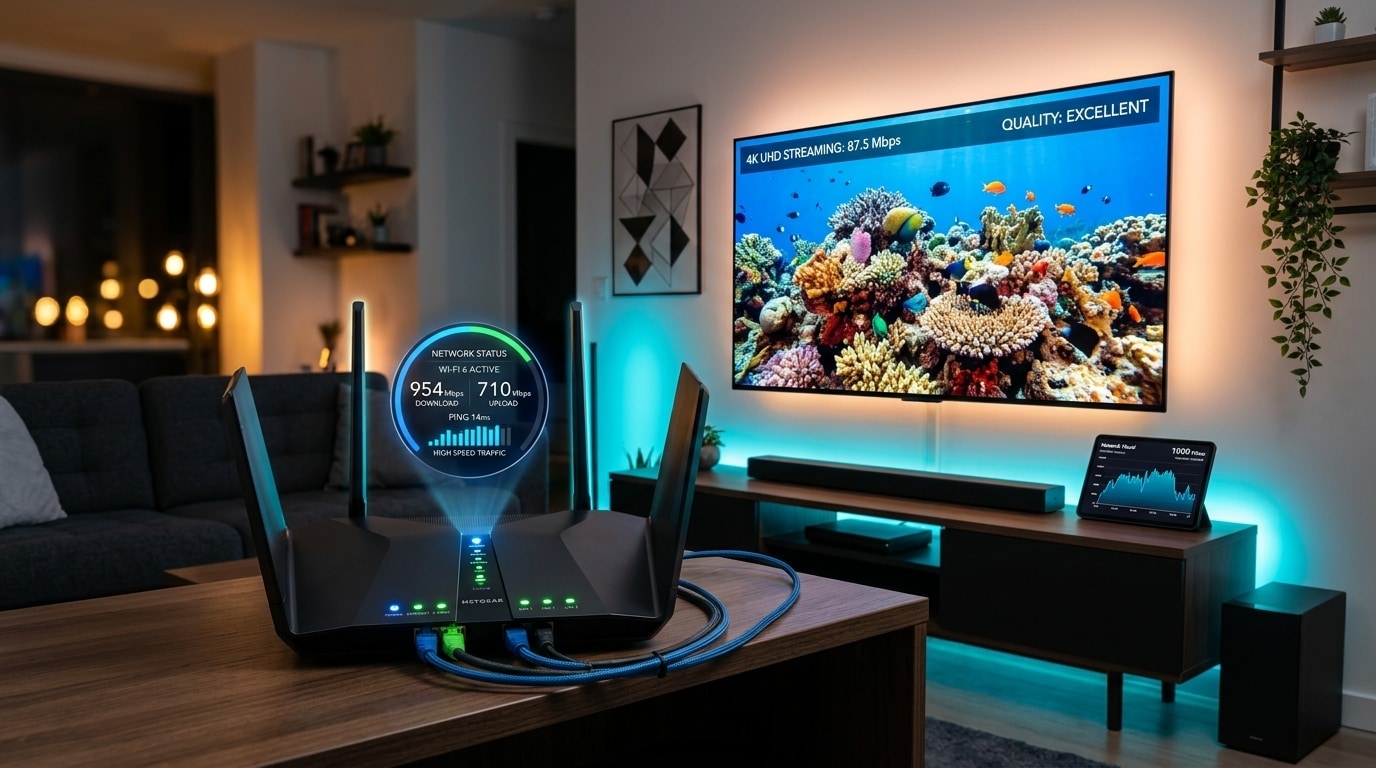
Even if your internet service provider delivers 500 Mbps to your front door, internal in-home wireless bottlenecks can degrade your streaming quality before packets reach your television display.
+-------------------------------------------------------------------------+
|                  IN-HOME NETWORK TRANSMISSION TIER LIST                 |
+-------------------------------------------------------------------------+
| TIER 1 (Optimal):    Direct Cat6 / Cat7 Ethernet (0ms jitter, 0% loss)  |
| TIER 2 (Near-Wired): MoCA 2.5 Coaxial Adapters (Uses existing TV cables)|
| TIER 3 (Acceptable): 5 GHz / 6 GHz Wi-Fi 6 (Line of sight to router)    |
| TIER 4 (Avoid):      2.4 GHz Congested Wi-Fi (Severe packet drops)      |
| TIER 5 (Worst):      Cheap Powerline Ethernet Adapters (Electrical noise)|
+-------------------------------------------------------------------------+
1. Cat6 Ethernet (The Gold Standard)
A physical, shielded Cat6 Ethernet cable connection is the most reliable way to connect your streaming device. Copper Ethernet cables transmit digital packets at the speed of light, completely isolated from wireless radio interference, physical walls, or microwave ovens. Ethernet guarantees 0.0% packet loss and sub-millisecond local jitter.
2. MoCA 2.5 Coaxial Adapters (The Secret Solution for Existing Cable Jacks)
If running a new Cat6 Ethernet cable from your router to your living room television is impractical, MoCA 2.5 (Multimedia over Coax Alliance) adapters are the premier alternative.
MoCA adapters convert the existing coaxial TV cable outlets already installed in your walls into high-speed Gigabit Ethernet connections. MoCA 2.5 delivers up to 2,500 Mbps of real-world throughput with under 3 milliseconds of latency, performing virtually identically to dedicated Ethernet cabling.
3. The 5 GHz Wi-Fi Frequency Band
If you must use wireless networking, connect your streaming device exclusively to your router’s 5 GHz frequency band.
- The 2.4 GHz Trap: The older 2.4 GHz band has longer physical range, but it is heavily congested with Bluetooth signals, baby monitors, and neighboring Wi-Fi routers. More importantly, 2.4 GHz channels are narrow and prone to interference, resulting in micro-packet drops that cause buffering.
- The 5 GHz Advantage: 5 GHz wireless channels provide significantly wider frequency bandwidth and faster transmission speeds, easily handling high-bitrate 4K streams as long as your streaming device is within reasonable proximity of the router.
4. Avoiding Cheap Powerline Ethernet Adapters
Many users attempt to solve Wi-Fi issues by buying inexpensive Powerline networking adapters that transmit internet signals across home electrical wiring.
In practice, home electrical circuits are filled with severe electrical noise generated by refrigerators, air conditioners, and phone chargers. Powerline adapters frequently drop video packets during high-demand broadcasts, making them an unreliable choice for live sports streaming.
How to Diagnose and Bypass ISP Throttling
Internet service providers often engage in traffic shaping or bandwidth throttling. During high-profile live sporting events (such as the Super Bowl, Champions League, or Saturday afternoon football), ISPs inspect network packet headers. When they identify massive streams of video packets originating from known IPTV hosting servers, they artificially limit connection speeds on those specific ports to reduce congestion on their own network transit backbones.
+-------------------------------------------------------------------------+
|                  HOW TO DIAGNOSE ISP BANDWIDTH THROTTLING               |
+-------------------------------------------------------------------------+
| Step 1: Run standard browser speed test (Record baseline Mbps)          |
| Step 2: Test IPTV stream stability during evening peak hours            |
| Step 3: Connect to a fast VPN (WireGuard protocol)                     |
| Step 4: Re-test stream playback                                         |
| Result: If stream immediately stabilizes, your ISP was throttling       |
+-------------------------------------------------------------------------+
The 4-Step ISP Throttling Diagnostic Protocol
- Record Baseline Speed: Run a standard speed test on your streaming device using a browser or speed test application. If your speed test shows 200 Mbps, your physical connection is performing normally.
- Observe Stream Behavior: Tune into a high-demand live sports channel. If the channel buffers constantly despite your speed test showing 200 Mbps, your ISP is likely selectively throttling the streaming port or transit route.
- Activate a Secure VPN: Launch a high-performance VPN application on your streaming stick or router, connecting to a local server using the modern WireGuard or Lightway protocol.
- Re-Evaluate the Stream: When you route your connection through a VPN, your ISP can no longer inspect packet headers or see your destination IP address; all they see is encrypted, randomized data. If your stream immediately stabilizes and plays smoothly in 4K, you have confirmed that your ISP was intentionally throttling your direct connection.
Tip: A well-engineered service like Kemo IPTV deploys multi-hop Content Delivery Networks (CDNs) and obfuscated port protocols that make it significantly harder for ISPs to single out and throttle your streams.
How to Eliminate In-Home Bufferbloat with Router QoS
Bufferbloat is a network flaw that causes latency and jitter to skyrocket whenever your connection experiences high upload or download activity.
Testing for Bufferbloat
You can test your home network for bufferbloat using free online network diagnostic tools. If your idle ping is 15 ms, but your ping spikes to 250 ms during active download testing, your home router suffers from severe bufferbloat.
Configuring Smart Queue Management (SQM) / QoS
- Open a web browser on your computer or phone and log into your router’s administrative console (typically accessed at
192.168.1.1or192.168.0.1). - Navigate to the Quality of Service (QoS), Traffic Prioritization, or Smart Queue Management (SQM) menu.
- Enable QoS and locate your streaming television device (e.g., your Apple TV 4K, Fire TV Stick, or Nvidia Shield).
- Set your streaming device’s priority to Highest or Real-Time Video.
- If your router features SQM (such as fq_codel or CAKE), enable it. SQM automatically manages packet queues, ensuring that large background file downloads can never delay real-time video packets.
For device-specific setup tutorials, consult our Firestick IPTV installation walkthrough or our Apple TV 4K IPTV setup guide.
Global ISP Peering Dynamics: Why Evening Routing Bottlenecks Happen
To understand why stream quality can dip precisely between 7:00 PM and 10:00 PM, you must understand how internet traffic moves between network providers across the globe.
+-------------------------------------------------------------------------+
|                  THE GLOBAL STREAMING PACKET JOURNEY                    |
+-------------------------------------------------------------------------+
| Origin: Broadcast Uplink & Satellite Downlinks                          |
| Stage 1: Ingest Transcoders (Encoding video to H.265/HEVC)              |
| Stage 2: Tier 1 Transit Backbones (Cogent, Lumen, Telia/Arelion)        |
| Stage 3: Internet Exchange Point (IXP Peering Handshake)               |
| Stage 4: Consumer Residential ISP (Comcast, AT&T, BT, Virgin Media)     |
| Stage 5: In-Home Local Area Network (Router, Switch, Cat6 Ethernet)    |
| Destination: Television Hardware Video Decoder (ExoPlayer/MediaCodec)   |
+-------------------------------------------------------------------------+
The Role of Tier 1 Transit Providers
Your residential internet provider (such as Comcast, Spectrum, AT&T, BT, or Virgin Media) does not maintain direct fiber connections to every streaming server worldwide. Instead, they buy transit capacity from Tier 1 backbone carriers like Cogent Communications, Lumen (CenturyLink), NTT, and Arelion.
During peak evening viewing hours, when millions of people across your city are streaming video, playing online games, and making video calls simultaneously, the physical interconnection points—known as Internet Exchange Points (IXPs)—where your residential ISP meets the Tier 1 transit networks become congested.
If an ISP refuses to upgrade its settlement-free peering links with a specific transit carrier, video packets get stuck in transit queues. This results in packet jitter, latency spikes, and stream buffering, even though the connection between your home and your local ISP telephone pole is wide open.
Diagnostic Protocol: Using MTR and PingPlotter to Pinpoint Packet Loss
When dealing with chronic streaming buffering, standard speed test utilities are unhelpful because they only test the short hop to your ISP’s local server. To locate the exact router hop causing packet loss, use an MTR (My Traceroute) diagnostic utility.
+-------------------------------------------------------------------------+
|                  SAMPLE MTR DIAGNOSTIC OUTPUT BREAKDOWN                 |
+-------------------------------------------------------------------------+
| Hop | IP Address / Hostname           | Loss % | Avg Ping | Jitter (Wrst)|
|  1  | 192.168.1.1 (Home Router)       | 0.0%   | 1.2 ms   | 2.1 ms       |
|  2  | 10.12.0.1 (ISP Local Gateway)   | 0.0%   | 8.4 ms   | 11.2 ms      |
|  3  | 96.120.45.1 (Regional Hub)      | 0.0%   | 14.1 ms  | 18.5 ms      |
|  4  | 68.86.91.22 (ISP Core Router)   | 0.0%   | 19.8 ms  | 22.1 ms      |
|  5  | 154.54.38.101 (Tier 1 Cogent)   | 4.2%   | 85.4 ms  | 142.0 ms     | <- PROBLEM!
|  6  | 185.190.140.2 (Streaming CDN)   | 4.1%   | 88.2 ms  | 145.1 ms     |
+-------------------------------------------------------------------------+
How to Read an MTR Diagnostic:
- Analyze Hop 1 (Your Home Router): If packet loss appears at Hop 1, your in-home connection (such as congested 2.4 GHz Wi-Fi) is the source of your buffering. Switching to Cat6 Ethernet will immediately fix it.
- Analyze Intermediate Hops (Your ISP): If packet loss appears between Hops 2 and 4, your local neighborhood cable node or fiber exchange is congested.
- Analyze Hops 5 and 6 (Transit Peering): If packet loss suddenly jumps from 0.0% to 4.2% at the boundary between your ISP and a Tier 1 carrier, your ISP is suffering from peering congestion or intentionally throttling that transit corridor. Activating a fast VPN reroutes your packets through an alternative transit path, bypassing the congested exchange point.
Wi-Fi Channel Planning & Spectrum Optimization
If running a physical Ethernet cable to your television is completely impossible, fine-tuning your router’s wireless radio spectrum is critical:
1. Channel Bandwidth: 80 MHz vs. 160 MHz
In modern Wi-Fi 5 and Wi-Fi 6 routers, you can configure the channel width for the 5 GHz band:
- 80 MHz Bandwidth (Recommended): Provides ample throughput (up to 800+ Mbps) while remaining narrow enough to avoid interference from neighboring routers in dense apartment complexes.
- 160 MHz Bandwidth: Delivers blistering theoretical speeds, but spans almost the entire 5 GHz spectrum. Any localized radar or neighboring network interference will trigger automatic channel shifting and momentary packet dropouts.
2. Utilizing Non-Overlapping DFS Channels
Most consumer Wi-Fi routers default to standard non-DFS channels: 36, 40, 44, 48 or 149, 153, 157, 161. In suburban neighborhoods and apartment buildings, dozens of routers compete for these exact same channels, creating wireless packet collisions.
- Enter your router’s wireless radio settings.
- Select an open DFS (Dynamic Frequency Selection) channel (such as channels 52 through 144).
- DFS channels are virtually empty in residential neighborhoods, giving your streaming device an uncontested wireless highway.
Streaming IPTV over 5G Home Internet and Starlink
Millions of households now access the internet through non-traditional broadband technologies:
1. 5G Fixed Wireless (T-Mobile Home Internet, Verizon 5G Home)
5G home broadband delivers fast download speeds (100 to 400 Mbps), but cellular networks inherently suffer from higher packet jitter than fiber.
- The Issue: Cellular towers balance load across mobile smartphones and home routers dynamically. Jitter can swing from 15 ms to 80 ms in seconds.
- The Optimization: Inside your IPTV player (such as TiviMate), increase your Buffer Size from Normal to Large (3.0 to 4.0 seconds). This larger buffer easily absorbs cellular jitter swings without interrupting playback.
2. Low-Earth-Orbit Satellite Internet (Starlink)
Starlink provides impressive broadband speeds to rural locations worldwide.
- The Issue: Starlink dishes must hand off active connections between moving low-earth-orbit satellites every few minutes. During satellite handoffs or severe rain fade, micro-outages of 200 to 500 milliseconds occur.
- The Optimization: Set your stream output format to HLS (.m3u8) instead of MPEG-TS. HLS buffers discrete video segments in advance, allowing your player to seamlessly ride out momentary satellite handoff drops.
Frequently Asked Questions
Final Recommendation: Build a Rock-Solid Streaming Foundation
Achieving consistent, buffer-free television streaming does not require paying for an expensive Gigabit internet plan. What matters is transmission quality: low ping latency, sub-5ms jitter, zero packet loss, and an optimized in-home network.
By hardwiring your streaming device with Cat6 Ethernet or using the 5 GHz Wi-Fi band, configuring fast Cloudflare DNS (1.1.1.1), setting up router QoS to stop bufferbloat, and choosing an enterprise broadcast provider like Kemo IPTV, you can stream pristine 4K live sports and on-demand entertainment without buffering interruptions.
Explore our full channel catalog, choose a subscription package on our pricing page, or contact our technical team via our live support desk if you need assistance testing your home connection.