Best IPTV Sports Setup 2026: 4K 60 FPS & Zero Lag
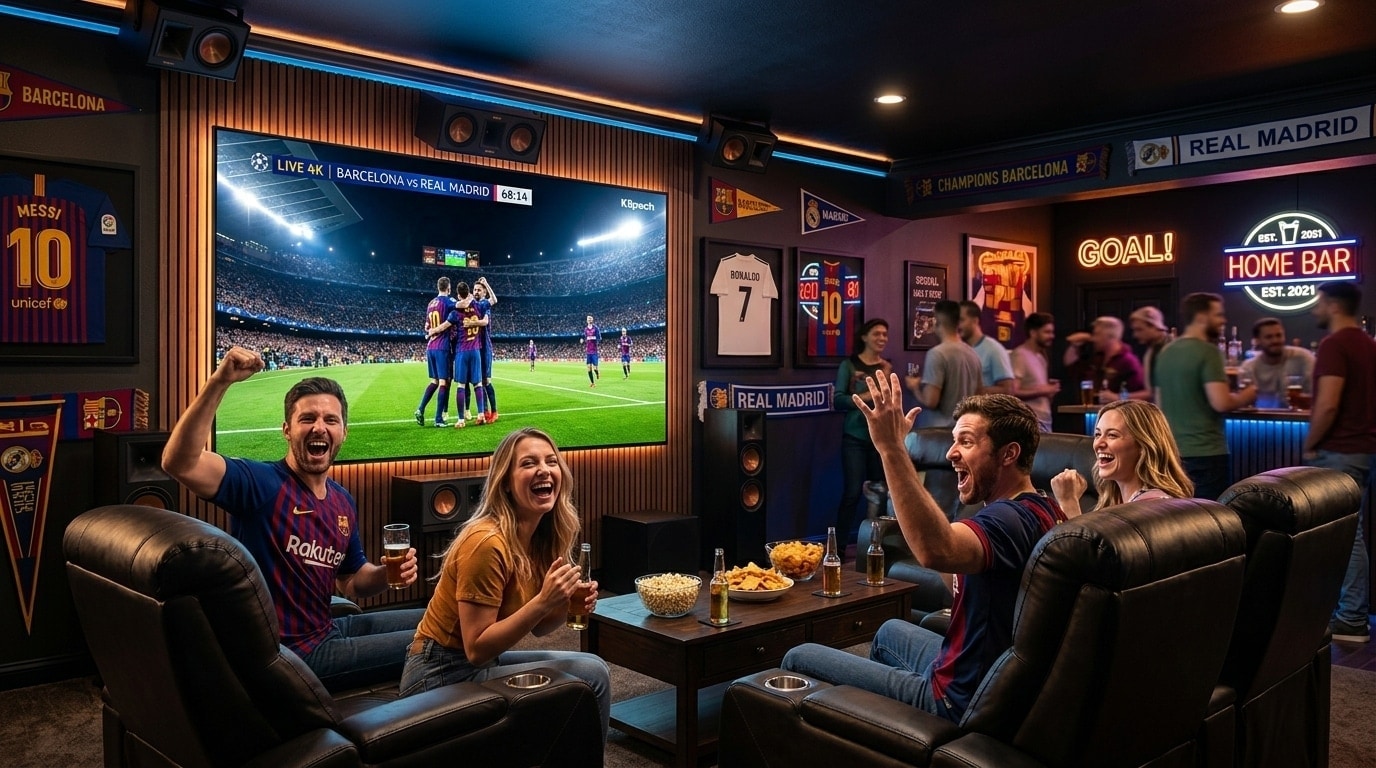
Live sports broadcasting represents the ultimate stress test for any streaming infrastructure. Unlike on-demand movies or pre-recorded episodic drama—where an application can lazily buffer minutes of video into flash memory in advance—live sports are delivered synchronously in real time. Every millisecond matters. When millions of sports fans worldwide tune in simultaneously to watch a Champions League final, a World Cup penalty shootout, an NFL Super Bowl touchdown, or an NBA buzzer-beater, streaming networks face extraordinary demand.
Watching live sports on an unoptimized streaming setup is an exercise in frustration: video that buffers right as a player takes a penalty kick, motion that judders during fast camera pans, audio that desynchronizes from the commentators' lips, or streams that freeze entirely during the final minutes of a match.
Building a zero-buffering, broadcast-quality sports streaming setup requires more than simply buying a high-speed fiber internet plan. It demands a holistic, engineered architecture: combining enterprise broadcast servers from Kemo IPTV, powerful client hardware decoders, synchronized Auto Frame Rate (AFR) matching, hardwired in-home network routing, calibrated television motion settings, and immersive multi-channel surround sound.
This comprehensive technical masterclass walks through every layer of the live sports streaming stack. We explore the physics of sports video compression, benchmark the top streaming media hardware, provide exact player configurations, eliminate in-home network latency, calibrate modern OLED and QLED displays, and explain how to create a multi-game command center for weekend matches.
Experience Kemo IPTV
Upgrade your streaming with high-performance anti-freeze infrastructure. Over 50,000 live channels, 4K 60FPS sports, and 200,000+ VODs on demand.
Quick Summary: The 5 Golden Rules of Live Sports IPTV
Before examining network packet dynamics and display physics in detail, keep these five foundational principles in mind:
+-------------------------------------------------------------------------+
|                  THE 5 GOLDEN RULES OF LIVE SPORTS STREAMING            |
+-------------------------------------------------------------------------+
| 1. High Temporal Framerate: 50 FPS (Europe) or 60 FPS (US) is mandatory |
| 2. Hardwired Connectivity:  Cat6 Ethernet or MoCA (Never 2.4 GHz Wi-Fi) |
| 3. Hardware Video Decoding: Bypass CPU via MediaCodec or Metal GPU      |
| 4. Auto Frame Rate (AFR):   Synchronize TV refresh rate to broadcast    |
| 5. Display Calibration:     Disable "Soap Opera" motion interpolation   |
+-------------------------------------------------------------------------+
The Technical Anatomy of Live Sports: Why Sports Differ from Cinema
To understand why live sporting events require specialized streaming configurations, you must examine how digital video encoding engines process high-speed motion compared to standard cinematic entertainment:
+-------------------------------------------------------------------------+
|              SPATIAL VS. TEMPORAL COMPLEXITY IN LIVE BROADCASTS         |
+-------------------------------------------------------------------------+
| Parameter           | Cinematic Drama / Movies  | Live Sports Broadcasts|
| Standard Framerate  | 24 FPS (Organic Blur)     | 50 / 60 FPS (Fluidity)|
| Camera Movement     | Controlled, slow pans     | Rapid horizontal pans |
| Visual Complexity   | Static backgrounds        | Grass, crowds, confetti|
| Macroblock Risk     | Very Low                  | Extremely High        |
| Delivery Protocol   | Large asynchronous buffer | Real-time synchronous |
+-------------------------------------------------------------------------+
1. Temporal Resolution: The 24 FPS vs. 60 FPS Reality
In cinema and dramatic television, 24 frames per second (FPS) is the historical aesthetic standard. It introduces a subtle, organic motion blur that human eyes associate with storytelling.
However, in fast-paced live sports:
- A football travelling through the air, an ice hockey puck moving across the rink, or a Formula 1 car accelerating down the straightaway travels vast physical distances in fractions of a second.
- When live sports are encoded at 25 or 30 FPS (a common shortcut used by budget IPTV providers to save server bandwidth), the fast-moving ball or athlete skips across the screen in discrete, choppy increments.
- Fast camera pans across football pitches or basketball courts turn into a disorienting, juddery blur that strains the viewer's eyes.
True high-grade broadcast services like Kemo IPTV deliver primary sports bouquets in 50 FPS (European PAL standard) and 59.94 / 60 FPS (North American NTSC standard). Doubling the frame rate from 30 to 60 FPS doubles the visual information per second, transforming choppy video into lifelike motion where player jersey numbers and ball trajectories remain sharp.
2. High Spatial Complexity: The Grass, Confetti & Crowd Problem
Video compression algorithms (such as H.264, H.265/HEVC, and AV1) rely on motion estimation vectors to compress video. If a television scene features a static wall or an actor sitting in a room, the encoder only transmits the small parts of the picture that change from frame to frame.
In a live stadium sports broadcast:
- A soccer pitch contains millions of individual, textured blades of grass moving under rapid camera movement.
- Stadium floodlights reflect dynamic specular highlights off player uniforms.
- Tens of thousands of fans in the background create visual noise.
- Confetti, rain, or snow falling during championship celebrations creates chaotic pixel changes across every square inch of the screen.
When compressed with an inadequate bitrate (such as 3 to 5 Mbps), video encoders cannot process this massive volume of changing spatial data. The pitch turns into an ugly, blocky smear of pixelated green mud, and the athletes' outlines break into macroblock artifacts.
To maintain pristine visual definition, a 1080p 60 FPS sports broadcast requires a clean, constant bitrate of 12 to 17 Mbps. A true 4K Ultra HD sports feed requires 22 to 35 Mbps encoded in H.265 (HEVC Main 10 profile).
Hardware Tier List: The Best Streaming Boxes for Sports
Live 60 FPS video decoding places higher demands on streaming hardware than static on-demand movies. Here is our ranking of the best streaming devices for sports enthusiasts:
+-------------------------------------------------------------------------+
|                    THE SPORTS STREAMING HARDWARE TIER LIST              |
+-------------------------------------------------------------------------+
| S-TIER (The Champions):   Apple TV 4K (3rd Gen) & Nvidia Shield TV Pro  |
| A-TIER (High Performance):Amazon Fire TV Stick 4K Max (2nd Gen)         |
| B-TIER (Acceptable Value):Chromecast with Google TV (4K)                |
| C-TIER (Avoid for Sports):Smart TV Built-in Apps & Budget S905 Android  |
+-------------------------------------------------------------------------+
1. Apple TV 4K (3rd Generation, A15 Bionic) — The Smoothness Champion
The Apple TV 4K is the undisputed king of fluid motion and video stability. Powered by Apple’s 6-core A15 Bionic processor and 4GB of RAM, it possesses massive processing headroom.
- Key Advantage: Native, system-wide Match Frame Rate functionality in tvOS. When paired with the UHF player app, it automatically switches your television display to 50.00 Hz for European football or 59.94 Hz for North American sports with zero dropped frames. Follow our Apple TV 4K IPTV setup guide.
2. Nvidia Shield TV Pro (Tegra X1+) — The Power User's Dream
The Nvidia Shield TV Pro remains the gold standard for Android TV power users.
- Key Advantage: Dedicated Gigabit Ethernet, hardware Dolby Atmos / DTS:X audio bitstreaming, and AI-enhanced 4K upscaling that sharpens standard 720p and 1080p regional sports feeds into near-4K clarity. Paired with TiviMate, it handles 4-screen multiview without a stutter.
3. Amazon Fire TV Stick 4K Max (2nd Gen) — The Best Value Contender
Featuring an upgraded 2.0 GHz quad-core processor, 2GB of RAM, hardware AV1 decoding, and Wi-Fi 6E connectivity, the Firestick 4K Max delivers outstanding sports streaming performance at an accessible price point. Follow our Firestick IPTV installation walkthrough.
Software Configuration: Tuning Your Player App for Live Sports
Even flagship hardware requires proper software configuration to deliver fluid sports playback. Follow these configuration protocols in your player app (such as TiviMate or UHF):
+-------------------------------------------------------------------------+
|                  PLAYER TUNING MATRIX FOR LIVE SPORTS                   |
+-------------------------------------------------------------------------+
| Setting / Feature       | Recommended Configuration | Technical Purpose|
| Video Decoder           | Hardware (MediaCodec / HW)| Prevents dropped frames |
| Auto Frame Rate (AFR)   | Turn ON (Match Display)   | Eliminates motion judder|
| Buffer Size             | Normal (1.5 – 2.5 seconds)| Balances latency & sync |
| Audio Output            | Passthrough (Bitstream)   | Delivers 5.1 stadium audio|
| Stream Output Format    | MPEG-TS (.ts)             | Fastest stream startup  |
+-------------------------------------------------------------------------+
1. Activating Auto Frame Rate (AFR) Matching (Eliminating Judder)
This is the single most important setting for live sports viewing.
Standard television panels refresh at 60 Hz (60 times per second). European sports broadcasts (Premier League, UEFA Champions League, Formula 1, La Liga) are produced at 50 frames per second.
When a 50 FPS video stream is forced onto a 60 Hz display, the mathematical mismatch requires the player to duplicate every fifth frame (3:2 pulldown). This causes a visible hitch or micro-stutter every second as the camera pans across the pitch.
How to Fix It:
- In TiviMate: Go to Settings > Playback > Auto frame rate (AFR) and turn it ON. Check the box for Switch refresh rate.
- In Apple tvOS: Go to Settings > Video and Audio > Match Content and turn on Match Frame Rate.
- When you tune into a sports channel, your display will synchronize its refresh rate directly to the incoming stream (e.g., your TV switches to 50 Hz for European sports, and 60 Hz for American sports). Camera pans become completely smooth.
2. Calibrating Playback Buffer Size for Real-Time Action
Setting your buffer too high introduces an unwanted delay behind live real-time action, meaning mobile notifications or betting apps may spoil a goal before it happens on your screen.
- Set your buffer to Normal (approximately 1.5 to 2.5 seconds).
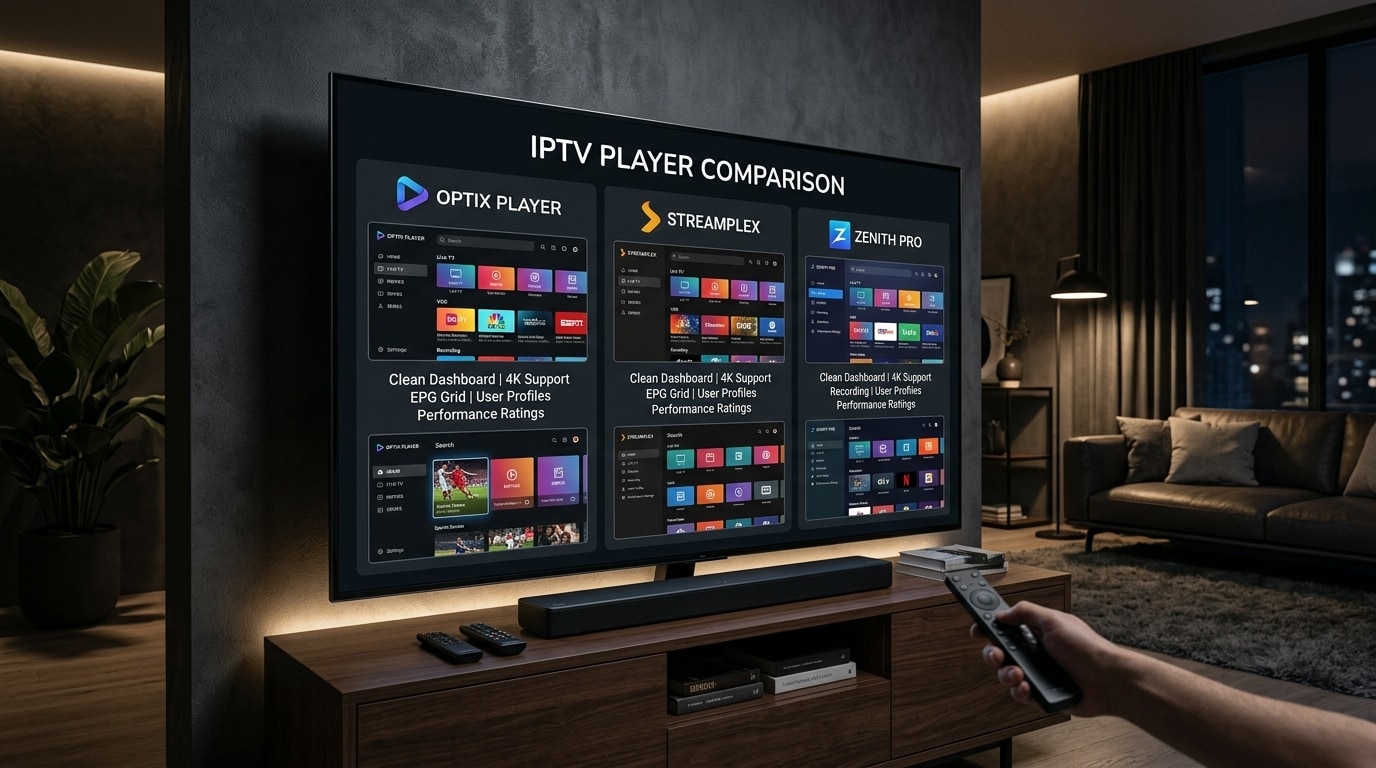
- This keeps your stream within seconds of live satellite broadcast timing while maintaining enough cushion to absorb momentary internet transit jitter. For deeper player comparisons, see our best IPTV players and streaming apps review.
Building a Zero-Buffering Home Network Topology
Even the fastest broadband connection will experience stream stuttering if your in-home local network suffers from wireless interference or packet jitter.
+-------------------------------------------------------------------------+
|                  ZERO-BUFFERING SPORTS NETWORK TOPOLOGY                 |
+-------------------------------------------------------------------------+
| ISP Fiber Modem / ONT (e.g., 200 – 1000 Mbps)                           |
|       │                                                                 |
| Router with SQM / QoS Enabled (Prioritizing Media Player IP)            |
|       │                                                                 |
| Direct Cat6 Shielded Ethernet Cable (0ms local jitter, 0% packet loss)  |
|       │                                                                 |
| Streaming Device (Apple TV 4K / Nvidia Shield / Firestick 4K Max)       |
+-------------------------------------------------------------------------+
1. Hardwire with Cat6 Ethernet (Non-Negotiable for Live Sports)
Live sports streams cannot afford packet re-transmission delays. While standard Wi-Fi is acceptable for web browsing, wireless airwaves are subject to interference from neighboring networks, smart home devices, and microwave appliances.
A direct, shielded Cat6 Ethernet cable running from your router to your streaming device provides guaranteed throughput, zero packet loss, and sub-millisecond local latency.
2. The MoCA 2.5 Coaxial Solution
If running a physical Ethernet cable across your house is impossible, use MoCA 2.5 (Multimedia over Coax Alliance) adapters. MoCA adapters convert the existing coaxial television cable outlets already installed in your walls into high-speed Gigabit Ethernet ports, delivering identical reliability to dedicated Cat6 wiring.
3. Eliminate Bufferbloat via Router QoS
If someone in your home downloads a large computer file or cloud backup while you are watching a match, the sudden upload/download burst can saturate your router’s packet queue, causing latency to spike from 15ms to 300ms.
- Enable Quality of Service (QoS) or Smart Queue Management (SQM) in your router settings.
- Assign your television streaming device’s IP address top priority so live sports packets always bypass household downloads. Test your network quality using our IPTV internet speed requirements guide.
Television Display Calibration: Optimizing OLED & QLED for Sports
Television manufacturers configure default picture modes ("Vivid" or "Dynamic") to stand out under bright retail showroom lighting. These settings damage the picture quality of live sports. Follow these display calibration adjustments:
+-------------------------------------------------------------------------+
|                  TELEVISION DISPLAY CALIBRATION SETTINGS                |
+-------------------------------------------------------------------------+
| Picture Mode:        ISF Expert, Cinema, or Filmmaker Mode (Accurate)   |
| Motion Smoothing:    Turn OFF "Soap Opera Effect" (TruMotion/Auto Motion)|
| Color Temperature:   Warm 50 / Warm 2 (D65 Broadcast Standard)          |
| Sharpness:           Set to 0 – 10% (Prevents artificial white halos)   |
| Dynamic Contrast:    Turn OFF (Prevents brightness fluctuations)        |
+-------------------------------------------------------------------------+
- Turn OFF Motion Interpolation (The "Soap Opera Effect"): Television brands call this feature TruMotion (LG), Auto Motion Plus (Samsung), or Motionflow (Sony). These post-processing algorithms attempt to insert artificially generated frames between broadcast images. On a true 60 FPS sports broadcast, motion smoothing causes soccer balls and hockey pucks to flicker or disappear, creates halo artifacts around running players, and introduces display lag. Turn it completely OFF.
- Set Accurate Color Temperature to Warm 50 (D65): Default picture modes use a Cool color temperature that makes green stadium grass look neon and gives ice rinks an unnatural blue tint. Setting color temperature to Warm 50 or Warm 2 brings colors into alignment with the D65 white point used by broadcast production trucks.
- Reduce Sharpness to Minimum (0 to 10%): Artificial sharpness filters do not add real detail. Instead, they draw harsh white outline halos around players, boundary lines, and scoreboards. Keep sharpness set between 0% and 10% for clean, natural edges.
Stadium Audio Immersion: Dolby Digital 5.1 & Commentary Balancing
A premier sports broadcast is an acoustic spectacle: the deafening roar of 60,000 supporters singing in unison, the crisp thud of a boot striking a ball, referee whistles, and commentator analysis.
+-------------------------------------------------------------------------+
|                  STADIUM SURROUND SOUND CONFIGURATION                   |
+-------------------------------------------------------------------------+
| Step 1: Connect Streaming Box to TV via HDMI 2.1                        |
| Step 2: Connect TV to AV Receiver / Soundbar via HDMI eARC Port         |
| Step 3: Enable Bitstream / Passthrough in Player and System Audio Menus |
| Step 4: Boost Center Channel by +2dB to +4dB for Crystal-Clear Dialogue |
+-------------------------------------------------------------------------+
1. Enable HDMI eARC Bitstream Passthrough
Connect your streaming media player directly to your television via HDMI, and connect your TV’s eARC port to your soundbar or home theater receiver. In your player app and device settings, ensure audio output is set to Bitstream (Passthrough) rather than basic stereo PCM. This allows discrete multi-channel Dolby Digital (AC3) tracks delivered by Kemo IPTV to be decoded directly by your surround sound system.
2. Boost the Center Audio Channel for Commentary Clarity
In standard 5.1 surround sound broadcast mixes, play-by-play commentary is routed strictly through the Center Channel speaker, while stadium crowd noise, chants, and pitch sounds are routed through the Left, Right, and Surround speakers. If stadium noise overpowers the commentators, access your receiver or soundbar equalizer and increase the Center Channel Volume by +2dB to +4dB to ensure dialogue clarity without turning down the stadium atmosphere.
Building a Multi-Screen Sports Command Center
During packed weekend sports schedules, multiple marquee games frequently take place at the exact same time.
+-------------------------------------------------------------------------+
|              TIVIMATE MULTIVIEW DISPLAY MODES FOR LIVE SPORTS           |
+-------------------------------------------------------------------------+
|  [ Screen 1: Premier League Football ] [ Screen 2: Formula 1 GP Race ]  |
|  [ Screen 3: NBA Basketball Showcase ] [ Screen 4: NFL Sunday RedZone ] |
+-------------------------------------------------------------------------+
With a multi-device subscription from Kemo IPTV and an application like TiviMate or UHF, you can build an authentic multi-game command center:
- While streaming your primary game, press Select or Down on your remote to bring up the on-screen menu.
- Click the Multiview icon.
- Choose your layout: 2 Screens (Side-by-Side), 3 Screens (One Large, Two Small), or 4 Screens (2x2 Quad Grid).
- Select additional live matches from your sports bouquets to populate each window.
- Highlight any active screen and click the center button to instantly route its live commentary to your soundbar. For basketball-specific setups, see our live NBA streaming guide.
Sport-by-Sport Technical Configuration Matrix
Different sports feature unique motion characteristics and broadcast standards:
| Sport Category | Target Frame Rate | Recommended Bitrate | Key Setting Focus | Primary Bouquets to Watch |
|---|---|---|---|---|
| European Football | 50.00 FPS (PAL) | 12.0 – 16.0 Mbps | AFR Match = 50Hz, Grass Sharpness = 0% | Sky Sports, TNT Sports, DAZN, beIN |
| American Football (NFL) | 59.94 FPS (NTSC) | 14.0 – 18.0 Mbps | AFR Match = 60Hz, Center Audio Boost | CBS, FOX, NBC, ESPN, NFL RedZone |
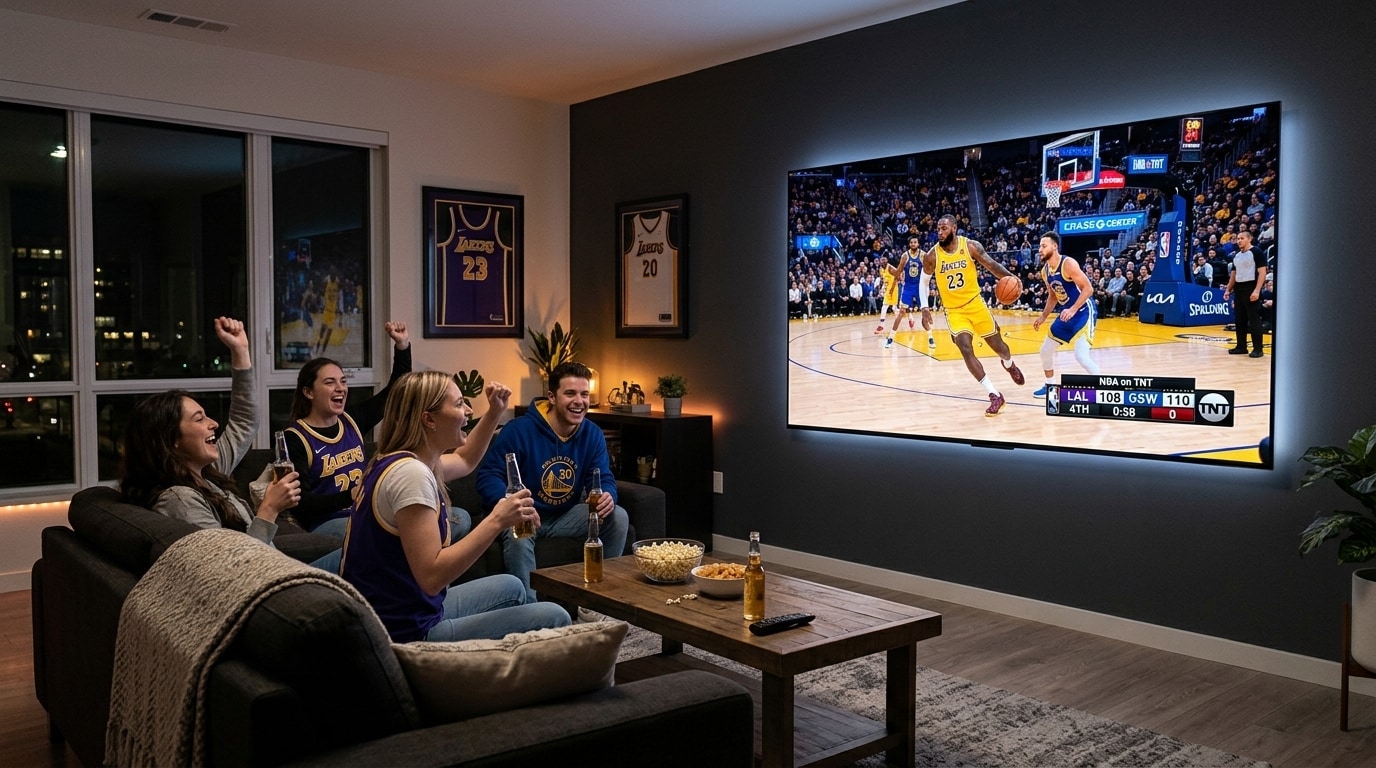
| NBA Basketball | 59.94 FPS (NTSC) | 12.0 – 16.0 Mbps | 60 FPS Fluidity, Home/Away Feeds | ESPN, TNT, NBA TV, Regional RSNs |
| Formula 1 & Motorsport | 50.00 FPS (PAL) | 16.0 – 22.0 Mbps | Wide Color Gamut, High Bitrate | Sky Sports F1, F1 TV, Canal+ F1 |
| Tennis & Golf | 50 / 60 FPS | 10.0 – 14.0 Mbps | High Contrast, Ball Tracking (No Blur) | Tennis Channel, Eurosport, Sky Golf |
The 30-Minute Game-Day Pre-Flight Checklist
To avoid scrambling to fix technical issues five minutes before kickoff, run this 10-step checklist 30 minutes before every major match:
+-------------------------------------------------------------------------+
|                  THE 30-MINUTE GAME-DAY PRE-FLIGHT PROTOCOL             |
+-------------------------------------------------------------------------+
| 1. Reboot your streaming hardware to clear accumulated RAM memory       |
| 2. Confirm Cat6 Ethernet link is active (or verify 5 GHz Wi-Fi signal)  |
| 3. Run a network speed test to verify clean throughput (> 35 Mbps)      |
| 4. Update your Electronic Program Guide (EPG) to fetch latest schedules |
| 5. Locate your primary match stream and verify backup regional feeds    |
| 6. Check that Auto Frame Rate (AFR) matching switches screen smoothly   |
| 7. Verify multi-channel audio output is active on your soundbar         |
| 8. Pre-configure your Multiview grid if tracking multiple concurrent games|
| 9. Have a fast VPN application ready in case your ISP begins throttling |
| 10. Set player buffer size to Normal (1.5 to 2.5 seconds)               |
+-------------------------------------------------------------------------+
Troubleshooting Common Sports Streaming Glitches
If you encounter unexpected technical issues during a live match, use this quick diagnostic guide:
+-------------------------------------------------------------------------+
|                  SPORTS STREAMING TROUBLESHOOTING MATRIX                |
+-------------------------------------------------------------------------+
| Issue 1: Stream freezes or loops every few minutes                      |
| Fix:     Clear player app cache and switch from MPEG-TS to HLS          |
|                                                                         |
| Issue 2: Audio plays clearly but screen remains completely black         |
| Fix:     Toggle video decoder from Hardware to Software in player       |
|                                                                         |
| Issue 3: Stream buffers only during high-profile matches                |
| Fix:     Activate a fast VPN (WireGuard protocol) to bypass ISP         |
+-------------------------------------------------------------------------+
1. The Stream Freezes or Stutters Repeatedly
- Switch to an alternative feed covering the same match within your sports bouquet (e.g., switch between UK, US, Canadian, or international broadcasts).
- In your player settings, toggle your stream format from MPEG-TS to HLS (.m3u8). HLS delivers video in segmented chunks that are more resilient to momentary packet loss.
2. Audio Plays But Video Is Pitch Black
- This occurs when an event broadcast uses an advanced 10-bit HEVC profile that your television’s hardware decoder fails to process over HDMI. In your player settings, switch your video decoder from Hardware to Software. For complete instructions, consult our guide on fixing IPTV black screens with sound.
3. Buffering Occurs Exclusively on Game Day
- If your internet connection works flawlessly for daytime browsing but buffers during weekend sports, your ISP is likely throttling streaming traffic. Connect to a fast VPN using the WireGuard protocol to encrypt your traffic and bypass ISP filtering.
Deep Dive: European Football Broadcast Infrastructure (50 FPS PAL)
European club football represents the largest global audience in television broadcasting. Because European television infrastructure is standardized on a 50 Hz power grid frequency, all European sports production trucks output video at 50.00 frames per second.
+-------------------------------------------------------------------------+
|                  EUROPEAN FOOTBALL BROADCAST DIRECTORY                  |
+-------------------------------------------------------------------------+
| Premier League:       Sky Sports Main Event/Premier League, TNT Sports  |
| UEFA Champions League:TNT Sports UK, Canal+ France, DAZN, Movistar Liga |
| La Liga (Spain):      DAZN LaLiga, Movistar LaLiga, ESPN+ (US feed)     |
| Serie A (Italy):      DAZN Italia, Sky Sport Serie A, CBS Sports (US)   |
| Bundesliga (Germany): Sky Sport Bundesliga, DAZN Deutschland            |
+-------------------------------------------------------------------------+
1. English Premier League & UEFA Champions League Feeds
In the UK and Europe, matches are broadcast across Sky Sports, TNT Sports (formerly BT Sport), and dedicated international feeds.
- The UHD 50 FPS Advantage: Top providers capture direct 4K UHD satellite transponder feeds broadcasting at 50 FPS with High Dynamic Range (HLG/HDR10). When viewed with Auto Frame Rate matching enabled, ball trajectory across the green pitch is completely smooth.
- Multi-Language Audio Selection: In applications like TiviMate or UHF, access the Audio Track menu while watching Champions League matches to select between original English stadium commentary, Spanish, French, or stadium-only ambient sound (no commentary).
2. Overcoming Regional Saturday 3:00 PM UK Blackout Rules
In the United Kingdom, the Football Association enforces a strict broadcast blackout on Saturday afternoons between 2:45 PM and 5:15 PM to protect stadium attendance. As a result, marquee 3:00 PM Premier League games are not televised by domestic UK broadcasters.
- The Solution: Kemo IPTV provides international broadcast feeds that televise every 3:00 PM match live with full English commentary (including NBC/Peacock US feeds, Optus Sport Australia, Fubo Canada, and SuperSport Africa).
American Football (NFL & College Football) Architecture (60 FPS NTSC)
American football presents unique challenges: 11-hour continuous Sunday broadcast schedules, regional market broadcast splits, and intense camera cuts between high-speed sideline action and wide tactical sky-cams.
+-------------------------------------------------------------------------+
|                     COMPLETE NFL BROADCAST ECOSYSTEM                    |
+-------------------------------------------------------------------------+
| Thursday Night Football: Prime Video Feeds / Local Broadcast Affiliates |
| Sunday Afternoon 1PM/4PM:CBS Sports (AFC) & FOX Sports (NFC) Affiliates |
| Sunday Night Football:   NBC HD/4K & Peacock Simulcast Feeds            |
| Monday Night Football:   ESPN, ESPN2 ("ManningCast"), ABC Simulcast     |
| Continuous RedZone Feed: NFL RedZone (7 Hours Commercial-Free in 60fps) |
+-------------------------------------------------------------------------+
1. Streaming NFL RedZone Without Memory Leaks
NFL RedZone broadcasts seven consecutive hours of live football every Sunday afternoon, rapidly switching between stadium feeds across the nation.
- The Technical Risk: Decoding an uncompressed 60 FPS live feed continuously for 7 hours can cause low-memory streaming sticks to accumulate memory fragmentation.
- The Optimization: Ensure your player application is configured to store EPG data in local SQLite database files rather than active RAM, and restart your streaming stick on Sunday morning before kickoff.
2. Accessing Out-of-Market Regional CBS and FOX Affiliates
Because NFL Sunday afternoon games are split regionally across local television affiliates, fans living outside their favorite team's regional market are forced into blackout restrictions by standard cable providers.
- Inside the Kemo IPTV lineup, you have access to local CBS and FOX affiliate stations across all 50 US television markets. Whether you want the New York, Dallas, Green Bay, or San Francisco local broadcast, simply select the corresponding city affiliate to watch your home team.
High-Speed Motorsport & Pay-Per-View Combat Sports
1. Formula 1 (F1) High-Bitrate Tracking
Formula 1 cars reach speeds exceeding 220 miles per hour, creating extreme motion vector complexity for video encoders:
- Primary feeds should be streamed via Sky Sports F1 (50 FPS) or dedicated F1 TV feeds.
- Ensure your television sharpness is calibrated to 0% to avoid motion halos around moving race cars and track barriers.
2. Pay-Per-View Combat Sports (UFC & Championship Boxing)
Championship pay-per-view events experience massive server concurrency surges as millions of viewers tune in at the exact same moment.
- Always load your desired fight channel 20 to 30 minutes before the main card begins.
- Have a verified backup channel bouquet (e.g., UK TNT Sports Box Office, Australian Main Event, or international feed) bookmarked in your player favorites in case an individual ingest transponder experiences high load.
Frequently Asked Questions
Final Recommendation: Build Your Ultimate Sports Command Center
Achieving broadcast-grade sports streaming requires an engineered approach:
- An enterprise broadcast provider like Kemo IPTV that delivers uncompressed 50/60 FPS feeds and multi-cluster CDN infrastructure.
- Capable streaming hardware (such as the Apple TV 4K, Nvidia Shield TV Pro, or Fire TV Stick 4K Max).
- A properly tuned player application with Auto Frame Rate matching enabled, hardwired Cat6 Ethernet connectivity, and calibrated television display settings.
With this foundation in place, you can enjoy every match, race, and championship tournament in pristine 4K and 60 FPS with zero buffering interruptions. Explore our full channel catalog, choose a subscription package on our pricing page, or contact our technical team via our live support desk if you need assistance configuring your setup before kickoff.